The desktop app runs it, the web app and New Outlook do not. Here is the full picture for Microsoft 365 users, plus the honest limits on Mac.
 by Esma Calis · Last updated: 2026-10-15
Mail merge in Outlook 365 runs through the Word desktop app, not Outlook itself and not the web app. You build a template in Word, connect an Excel or Outlook contact list as the data source, then use the Mailings tab to send personalized emails through your installed Outlook desktop client.
That one sentence trips up most Microsoft 365 users, because they open Outlook expecting a “mail merge” button and never find one. The feature lives in Word. This guide walks through the exact steps, the apps that cannot do it, shared mailbox limits, and the honest state of mail merge on Mac.
New here? Start with our primer on Email Marketing Fundamentals for the fundamentals, then come back to this guide.
Quick context: Mailsoftly offers transparent pricing, free hands-on migration, and human support. 500 contacts and 2,000 emails per month, no credit card.
Start free with Mailsoftly →
Key Takeaways
You do it in Word, not Outlook. Open the Word desktop app, go to the Mailings tab, start a mail merge of type Email Messages, connect your recipient list, insert merge fields, then choose Finish and Merge, then Send Email Messages. Word hands each personalized message to your installed Outlook desktop app, which does the actual sending.
The three apps work together. Word holds the template and the merge logic. Excel (or your Outlook Contacts) supplies the data, one row per recipient with columns like first name, company, and email address. Outlook desktop is the engine that transmits. If any one of these is missing or set to a web-only version, the merge will not complete.
One detail catches people out: Word sends through whatever account is set as the default in your Outlook desktop profile. Confirm the right sending address before you hit send, because there is no preview of the live outbound address in the merge dialog. Messages also send plain, with no open tracking and no scheduling.
Read enough? Try Mailsoftly free with 500 contacts and 2,000 emails per month, no credit card.Start free with Mailsoftly →
No. New Outlook, the redesigned client Microsoft is rolling out across Windows, does not support native mail merge. It is built on the same web-based architecture as Outlook on the web, and that framework has never included the Mailings engine that lives in the classic desktop stack.
If you have switched to New Outlook and need to run a merge, the fix is to toggle back to classic Outlook using the switch in the top-right corner, or keep the classic desktop app installed alongside it. Word only recognizes the classic Outlook desktop profile as a valid send target. When New Outlook is your only client, Word has nothing to hand the messages to, and Finish and Merge fails silently or sends nothing.
Because this limitation is structural rather than a missing setting, waiting for a future toggle will not help. The practical options are the classic desktop app or a dedicated sending tool. If you are moving toward richer campaigns anyway, a purpose-built email marketing software platform removes the dependency on which Outlook build you happen to be running and gives you one consistent workflow across devices.
No. The Outlook web app (Outlook on the web, sometimes called OWA) cannot run a mail merge. There is no Mailings tab in the browser, and Word for the web does not expose the merge-to-email feature either. Mail merge is a desktop-only capability in Microsoft 365.
This surprises a lot of users whose organization pushes the browser experience. The web versions of Word and Outlook are excellent for everyday writing and reading, but the merge engine depends on local automation between Word and Outlook that a browser tab cannot provide. If your only access is the web app, you have two realistic choices.
| Word desktop + classic Outlook | Works |
| New Outlook (Windows) | No |
| Outlook on the web | No |
| Word for the web | No |
To send a mail merge from a shared mailbox, add the shared mailbox as a full account in your classic Outlook desktop profile, set it as the default sending account, then run the merge from Word. Word always sends through the default account, so the shared mailbox must hold that position during the merge.
The common mistake is adding the shared mailbox only as an auto-mapped folder. In that state Outlook can read and reply from it manually, but Word cannot select it as the merge sender, so every message goes out from your personal address instead. You need the shared mailbox configured as its own account with send permissions granted by your Microsoft 365 administrator.
Even when this works, each email still goes out individually and counts against the sending limits on that mailbox. For recurring campaigns from a team address, a shared sending platform with role-based access avoids the fragile default-account juggling and keeps a clean record of who sent what.
Yes, but only with the classic desktop combination. Word for Mac has a Mailings tab, and when paired with the classic Outlook for Mac desktop app it can run a basic email merge. The catch is that New Outlook for Mac and Outlook on the web cannot run it, so the same desktop-only rule from Windows applies here too.
The Mac merge is more limited than the Windows version. It handles plain personalization well, like greeting each recipient by name, but it offers fewer formatting controls and no native scheduling or tracking. If you have switched your Mac to New Outlook, flip back to the legacy Outlook for Mac before you start, because Word for Mac needs the classic client as its send target.
| Setup | Merge? | Workaround |
|---|---|---|
| Word for Mac + classic Outlook for Mac | Yes, basic | Use as is for simple name merges |
| New Outlook for Mac | No | Switch back to legacy Outlook for Mac |
| Outlook on the web (Mac browser) | No | Use a web-based sending tool |
For Mac users who need anything past a one-off name merge, the honest answer is that a dedicated platform is less fuss than fighting the legacy app chain. You skip the version switching entirely and get the formatting, scheduling, and reporting the Mac merge has never offered.
Use a dedicated email tool when you need scheduling, open tracking, deliverability, or sending to more than a handful of people at once. Outlook mail merge is fine for an occasional personalized note, but it sends plain, offers no analytics, and leans on sending limits that are not built for marketing volume. A platform like Mailsoftly is built for exactly that gap.
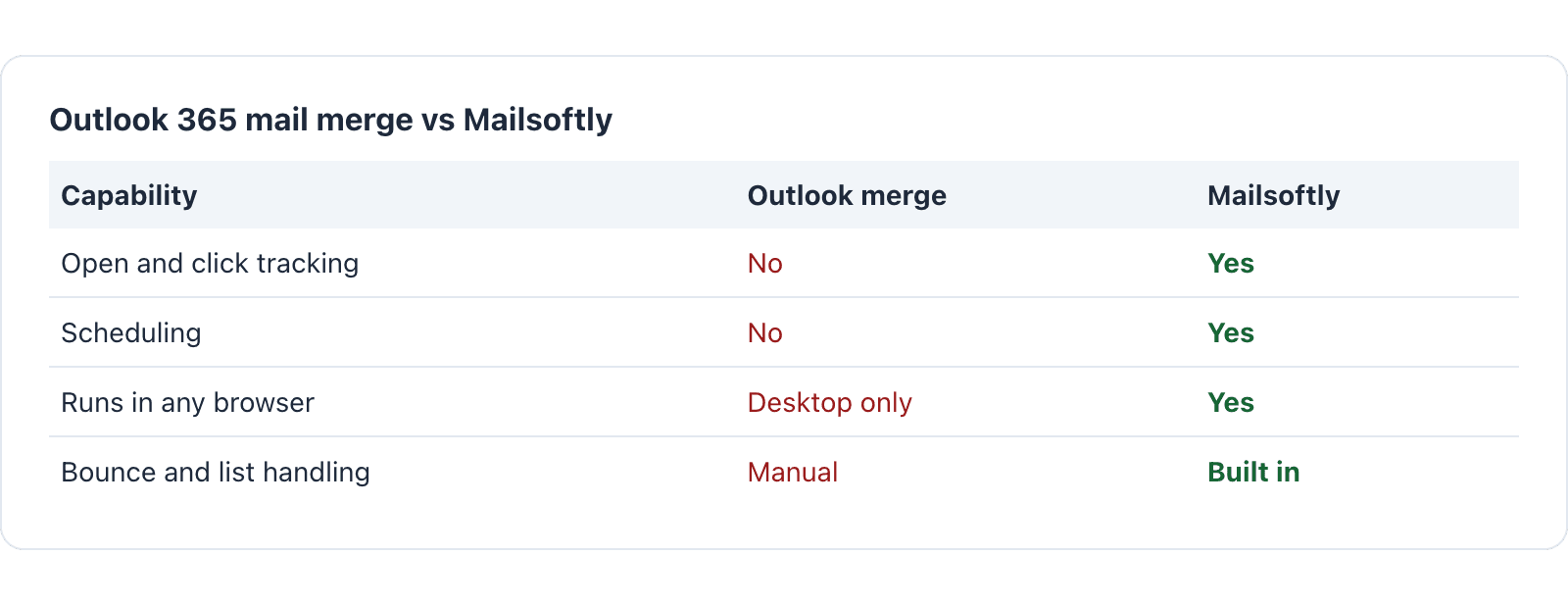
The practical differences compound fast. Mail merge gives you no way to see who opened, no send-later option, and no bounce handling, so a bad address silently fails. Mailsoftly adds list management, templates, open and click reporting, scheduling, and deliverability monitoring in one place that runs in any browser, with no dependence on which Outlook build you installed. You can compare tiers on the Mailsoftly pricing page and start on the free plan to test it against your current workflow.
| Capability | Outlook merge | Mailsoftly |
|---|---|---|
| Open and click tracking | No | Yes |
| Scheduling | No | Yes |
| Runs in any browser | Desktop only | Yes |
| Bounce and list handling | Manual | Built in |
On price (as of 2026-10-18), Mailsoftly starts free with 500 contacts and 2,000 emails per month. The Starter plan is $15 per month on annual billing (or $19 monthly) for 1,000 contacts and 10,000 emails. Basic is $39 per month annual (or $49 monthly) for 5,000 contacts and 40,000 emails, and Business is $79 per month annual (or $99 monthly) for 15,000 contacts and 150,000 emails. Premium runs $159 per month annual (or $199 monthly), and Enterprise is custom for unlimited contacts and emails.
The decision is simple. Keep the Word and Outlook merge for a rare, small, personalized batch where you do not care about reporting. Move to a dedicated tool the moment you want to measure results, schedule ahead, or send regularly, because that is where the desktop merge stops being worth the setup overhead.
For the broader picture on this topic, see our complete Email Marketing Fundamentals guide, which covers strategy, fundamentals, and advanced playbooks.

There is no mail merge button in Outlook itself. The feature lives in the Word desktop app under the Mailings tab. You start the merge in Word, connect your list, and Word sends the finished messages through your classic Outlook desktop client.
The most common cause is running New Outlook or the web app instead of classic Outlook desktop. Word can only hand messages to the classic client. Switch to classic Outlook, confirm it is your default mail program, and run Finish and Merge again.
No. Outlook mail merge sends plain messages with no open or click tracking and no delivery reporting. If you need to measure engagement or see who opened, use a dedicated email marketing platform that includes tracking and analytics.
Yes. Word for Mac with the classic Outlook for Mac desktop app runs a basic merge, but it has fewer features than the Windows version and no scheduling or tracking. New Outlook for Mac and the web app cannot run a merge at all.
Sending is capped by your Microsoft 365 account limits, which are built for regular business mail, not bulk campaigns. Large batches risk throttling or deliverability issues. For higher volume, a platform designed for email marketing with warmed sending infrastructure is the safer choice.
Ready to switch?Start free with Mailsoftly →
500 contacts, 2,000 emails per month. Free hands-on migration. No credit card.
Ready to boost your email marketing?
Send beautiful, targeted emails that convert. Free plan available, paid plans from $15 a month.
Try Mailsoftly FreeNo credit card required