
Create an email list from Excel
Turn an Excel sheet into a clean email list in Mailsoftly. Upload the .xlsx as it is, match the columns and keep your own as fields, update contacts you already have instead of duplicating them, skip blank and repeated rows, then check the list's health and clean it up. Includes a video.
You have a sheet of people who asked to hear from you: sign-ups from a trade show booth, a studio’s client list, a workshop register. The usual way to turn it into an email list is to copy columns into your email tool by hand, then find out later that the same person is in there twice, that some rows had no email, and that an old record never got the new details. In Mailsoftly you upload the sheet as it is and the import does the cleaning: repeats and blank rows are skipped, people you already have are updated, and a health check finds the addresses that cannot receive email.
The video follows one example, a growing design studio turning the sign-up sheet from its expo booth into a newsletter list. The steps below are the same job in writing.
Only import people who agreed to hear from you. The import asks you to confirm that before it starts, and bought or scraped lists bring spam complaints that hurt every email you send afterwards.
## Before you start: get the sheet ready You do not need to reformat your sheet, but three habits make the import cleaner.
- One row per person and one header row with the column names. The header names are what Mailsoftly matches, so First Name, Last Name, Email and Company are recognized on their own.
- One detail per column. A column such as Interest, Store or Membership level becomes a field you can filter and personalize with later.
- Leave out columns of dates you do not need. A date column with a name Mailsoftly does not recognize can be matched to Mobile Phone by mistake, so check that column’s header in step 2 and set it to Do not import or to the right field.
A workbook with several sheets is fine: you pick the sheet in the wizard. A Google Sheet works too, once you download it as .xlsx or .csv.
Read the video transcript
Here's how to turn an Excel sheet into a clean email list, with no copy and paste and no duplicates. The usual way: copy the columns over by hand, and end up with the same person twice, blank rows and typos, and old records that never got the new details. Here's the clean way, with the sign-up sheet from our expo booth, where everyone asked for the studio's newsletter.
Open Contact Lists, and click Import Contacts. Drop in the Excel file, just as it is. If it has more than one sheet, pick the one with your sign-ups.
Name the new list, Design Expo Newsletter, and go to the next step. Every column shows up with your own rows. Emily signed up twice, so her repeat is flagged.
Liam left no email, so his row is skipped. Interest is your own column. Make it a field, right from its header, and go on.
The review adds it up: twelve people, one already in your account, and two rows skipped. Daniel is already a contact, with an old company. Update from the file changes his details in place, so he's never added twice.
Then open Tags and add one, Design expo, so you can always find this group later. Start the import. Mailsoftly asks you to confirm that these people agreed to hear from you.
Tick the box, and go. Done in seconds. Eleven added, one updated, and two rows not imported.
Your new list opens with its health grade. Two addresses have a typo in the domain. Click Clean up list.
The dead domains group is ticked. Remove those two from this list. They stay in your account.
Checked again: no risk signals. Last, add the Interest column you brought in from the sheet. Everyone is here once, with their company and what they're interested in.
Your Excel sheet is now a clean email list. An email list from Excel, clean and ready. Start free at mailsoftly.com.
Upload the Excel file
Open Audience, go to Contact Lists and click Import Contacts. The same wizard opens from the Contacts page and from Create a Contact List.
Drop the file on the box that reads Drop a file here or click here to select a file, or click it to browse. Excel (.xlsx, .xls) and CSV are accepted, up to 30,000 rows and 50 MB per file. A green card shows the file name and how many rows were found, counting the header row. If the workbook has more than one sheet, a Sheet picker appears under it: choose the sheet with your people.
Under Where should we save your contacts?, keep Create New List and type a name you will recognize, or switch to Select Existing List to add these people to a list you already have. Click Next.

Match the columns and keep your own
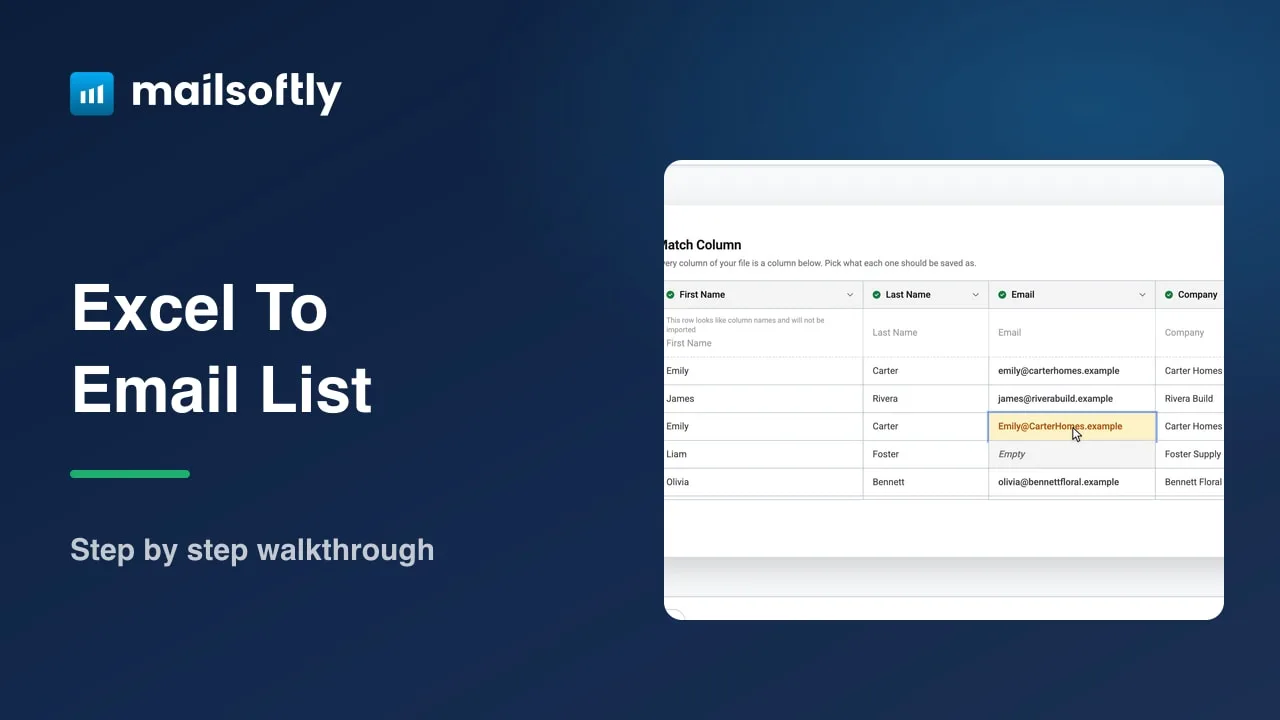
Match Column shows your sheet as a table, one column per column of your file, with your own rows underneath. Each header is a picker that says what the column is saved as. First Name, Last Name, Email and Company are matched for you and turn green.
The email column is checked as you look at it, before anything is saved:
- A repeated address is highlighted, whatever its capitals or spaces. Only the first row with that address is imported.
- An empty email cell reads Empty, and that row is skipped.
- An address that is not shaped like one, such as a name with no domain, is marked and skipped.
A column Mailsoftly does not recognize, such as Interest, starts on Do not import. To keep it, click its header and choose Create "Interest". The column turns green with a New pill, and the field is created on your account when the import runs. You can also point a column at a field you already have, or at Tags to tag each person with what is in that cell.
A field created here is a text field. For a date you want to use in date filters or triggers, create the field as a date field under your contact fields first, then map the column to it.


Review: contacts, skipped rows and people you already have
Review and Complete reads back what is about to happen. Three tiles show how many contacts will be imported, with a line such as 1 already in your account · 11 new, how many rows will be skipped for a missing or invalid email, and which columns are mapped.
If anyone on the sheet is already in your account, a box says so and shows one of them side by side: In Mailsoftly now against In your file, with the cells the file would change picked out. Choose what happens to those people:
- Update from the file is the default and is marked Recommended. Filled cells replace the saved details, blank cells leave them alone.
- Replace with the file makes the record exactly what the file says, blanks included, and asks you to confirm.
- Keep Mailsoftly as it is changes nothing on the record.
Whichever you choose, the person is never added twice: the existing contact is updated in place and joins the list.

Tag the batch, confirm consent and start
Open Tags and type a tag such as Design expo, then click Add. It goes on everyone in this file, so you can find this group later. Mailsoftly also suggests a tag named after your file; remove it if you do not need it.
Leave Email status for these contacts on Subscribed. Then confirm that the people in this file agreed to hear from you: tick I confirm that the contacts I have imported have accepted to receive emails from me, or click Start Import and tick the same box in the Confirmation Required window, then click Confirm and start import.

Read the result
The import runs in the background, and you can leave the page. A small sheet finishes in seconds and the card turns into Import Completed! with a summary line, such as 11 added · 1 updated · 2 not imported, and four numbers: List Name, Total File Rows, Successfully Imported and Invalid or Ignored. Download import report gives you every row of your file with what happened to it, so you can fix a skipped row and import it again. Click View Contact List.

Check the list’s health and clean it up
Your new list opens with List health at the top: a grade from A to F and a headline such as Several risk signals found. Mailsoftly checks every address on the list for domains that cannot receive email, domains with no mail server, role addresses like info@, disposable addresses and addresses that bounced before.
Click Details to see the signals. A typo in a domain, such as greenleafdesgin for greenleafdesign, looks like a valid address but has no mail server, so it shows up here as a contact on a dead domain, and that contact carries a No mail server badge in the list. Click Clean up list, keep the groups you want to remove ticked, and click Remove. Those contacts leave this list only; they stay in your account, and Mailsoftly already skips addresses with no mail server when you send. The grade is recalculated after the cleanup.


See your columns in the list
Click Edit Columns above the table, tick your new field, such as Interest, and click Apply. The list now shows each person with the details from your sheet, ready for a segment, a tag-based filter or your first email.
## Rules worth knowing – An address is matched to an existing contact whatever its capitals or surrounding spaces, so a sheet never creates a second contact for someone you already have. – Blank cells never wipe saved details unless you choose Replace with the file. – Rows with no email, an invalid email or a repeated email are skipped and listed in the import report with the reason. – Importing does not start automations that run when a contact is created or updated. A tag you type that starts an automation is flagged before the import runs. – New contacts count toward your plan’s contact limit; existing contacts that are only updated do not. If a file would go over the limit, Mailsoftly tells you before it starts. – Each list keeps a record of its last import, with Undo this import for a while afterwards.
For every option of the import wizard, including paste, existing lists and the import history, see Import contacts and manage lists.

Frequently asked questions
How do I create an email list from Excel?
Open Contact Lists, click Import Contacts and drop your .xlsx file. Pick the sheet, name the new list, check the matched columns and create a field for any column of your own, review, confirm your contacts agreed to hear from you, and start the import. The list is ready in seconds.
What happens to duplicate emails in my sheet?
The first row with an address is imported and later rows with the same address are skipped, whatever their capitals or spaces. They are highlighted before you import and listed in the import report.
What happens to people who are already in my contacts?
They are updated in place, not added twice. With Update from the file, filled cells replace their saved details and blank cells leave them alone. They also join the new list and get its tags.
What happens to rows with no email or a typo?
A row with no email or an address that is not shaped like one is skipped. A typo in a domain that still looks valid is imported, then flagged by List health as a domain that cannot receive email, and Clean up list removes it from the list.
Can I import a Google Sheet?
Yes. Download it as .xlsx or .csv and upload that file, or copy the rows and use the Copy & Paste tab of the same wizard.
Is it free?
Yes, you can start free. The free plan imports contacts, checks list health and cleans lists, up to its contact limit.
Ready to try it in your own account?
Free to start with your Google Workspace or Microsoft 365 account. No credit card required.