
Create an email newsletter
Create an email newsletter in Mailsoftly for free. Start from a template made for your industry, add this month's photo and headline, drop in blocks you saved and your brand footer, check it on a phone, send yourself a test, then save it as a template so next month's issue starts from it. Includes a video.
A newsletter people want to read has the same shape every month: a headline story, a couple of short items, what is coming up and one clear button. The usual way to make one is a blank page each month, or last month’s email copied and fixed by hand, and then finding out it looks wrong on a phone. In Mailsoftly you start from a template made for your kind of organization, change only what is new, and save the result as your own template, so the next issue is mostly done before you start.
The video follows one example, the monthly volunteer newsletter of a community food bank. The steps below are the same job in writing, and they work the same for a club, a school group, a practice or any growing business.
This guide is about designing the newsletter. To send it to your list, see Send an email blast. Only send it to people who asked for it.
Pick a template made for your industry
Click Templates in the left menu. When Mailsoftly knows your industry, from your company profile or your website, a shelf titled with it sits near the top, such as Made for Nonprofits. Hover a card and click Use template; Preview shows the whole email first.
A new campaign opens in the drag and drop editor with the template on the canvas, and it is saved straight away: the status next to the campaign name reads Saved. Scroll down the canvas to see how the template is laid out. A newsletter template comes in sections, for example a headline story with a photo, two short items side by side, an upcoming event and a button.
If the shelf names the wrong industry, a workspace admin can change it under Not your industry? below the shelf, or on the company profile.

Open your templates in Mailsoftly
Add this month’s photo
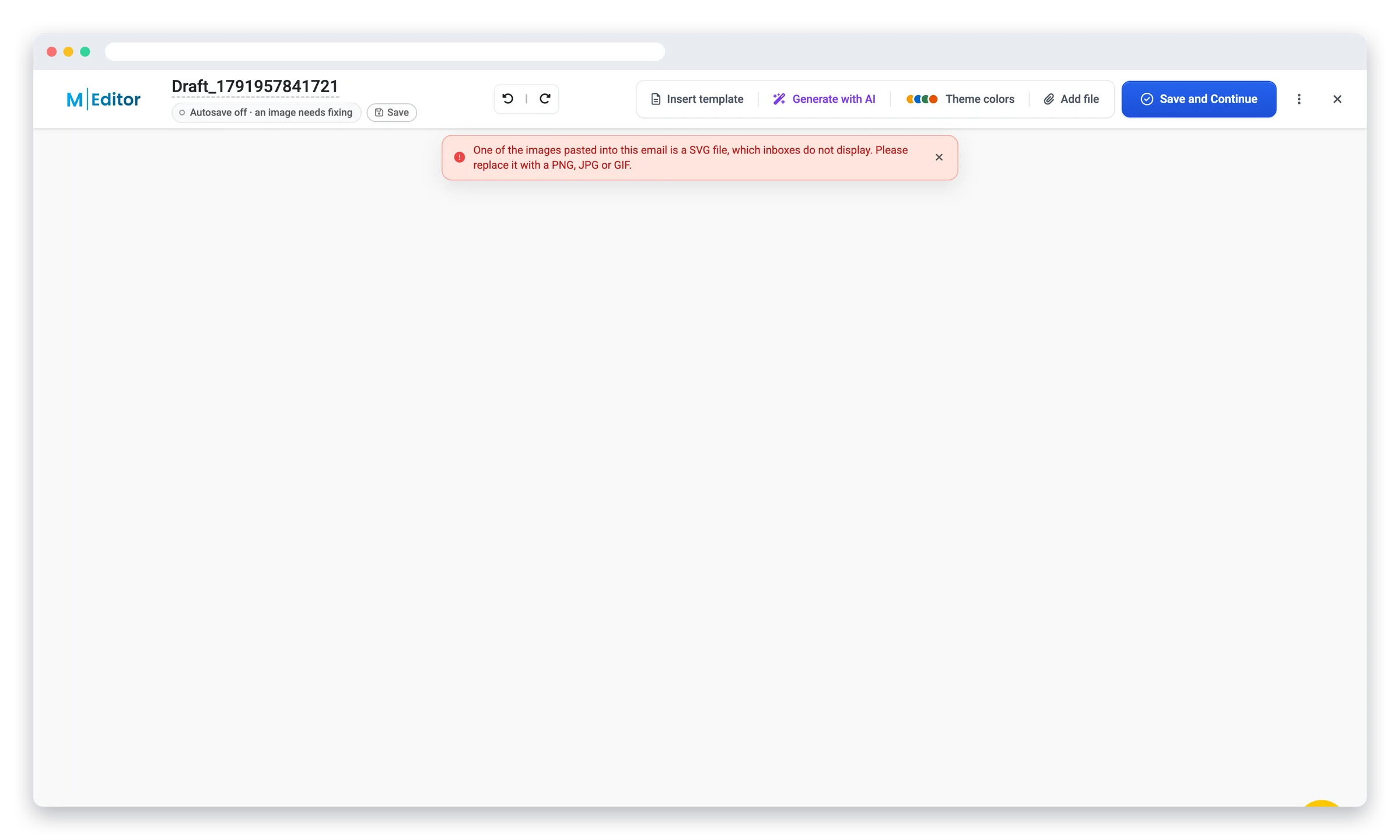
Click the photo in the template. The image settings open on the left; click Upload Image. Your Image Gallery opens: on the Upload tab click Upload, pick the photo from your computer (PNG, JPG or GIF), then click it in the gallery and click Use Image. The photo replaces the sample one and stays in your gallery for the next issue.
Write this month’s headline and sections
Click the headline on the canvas, select its text and type your own. Do the same for the short items and the event. Click any block to change its text, its link or its spacing; drag a block from Content on the left, such as Paragraph, Image or Button, to add one.
Keep one main button per issue. A newsletter with one clear next step, such as Sign up for a shift, gets more clicks than one with five.

Drop in blocks you reuse every issue
Anything that repeats each month, a ways to help box, an event panel or a sign off, only needs to be built once. Open the menu with three dots at the top right of the editor and choose Insert a Block. Under My Blocks, click Insert Block on the one you want. It is added at the end of the email, above the footer, so scroll down to see it; drag it elsewhere if you like.
The Block Gallery tab of the same window starts with Your brand footer, marked From your Brand Kit: your organization’s name, address and social icons in your brand colors, made from your brand kit. Click Insert Block to add it.
To save a block of your own, see Save and reuse a content block.
Every email also ends with the footer Mailsoftly adds for you, with your company information and an unsubscribe link. It is locked so it is never forgotten.


Check it on a phone, then save it as a template
Click the eye icon at the bottom right of the canvas to open the preview, then the phone icon at the top of the preview. Scroll through the whole issue: most people will read it on a phone. Close the preview with the X.
Then open the three dot menu again and choose Save as Template. Type a name you will recognize, such as Volunteer Newsletter, and click Save as Template. Your design, with this month’s photo and blocks, is now under Templates, My Templates. The campaign you are working on stays open.
Save the template once the layout is right, not at the last minute. You can save a new version later under a new name.

Send yourself a test
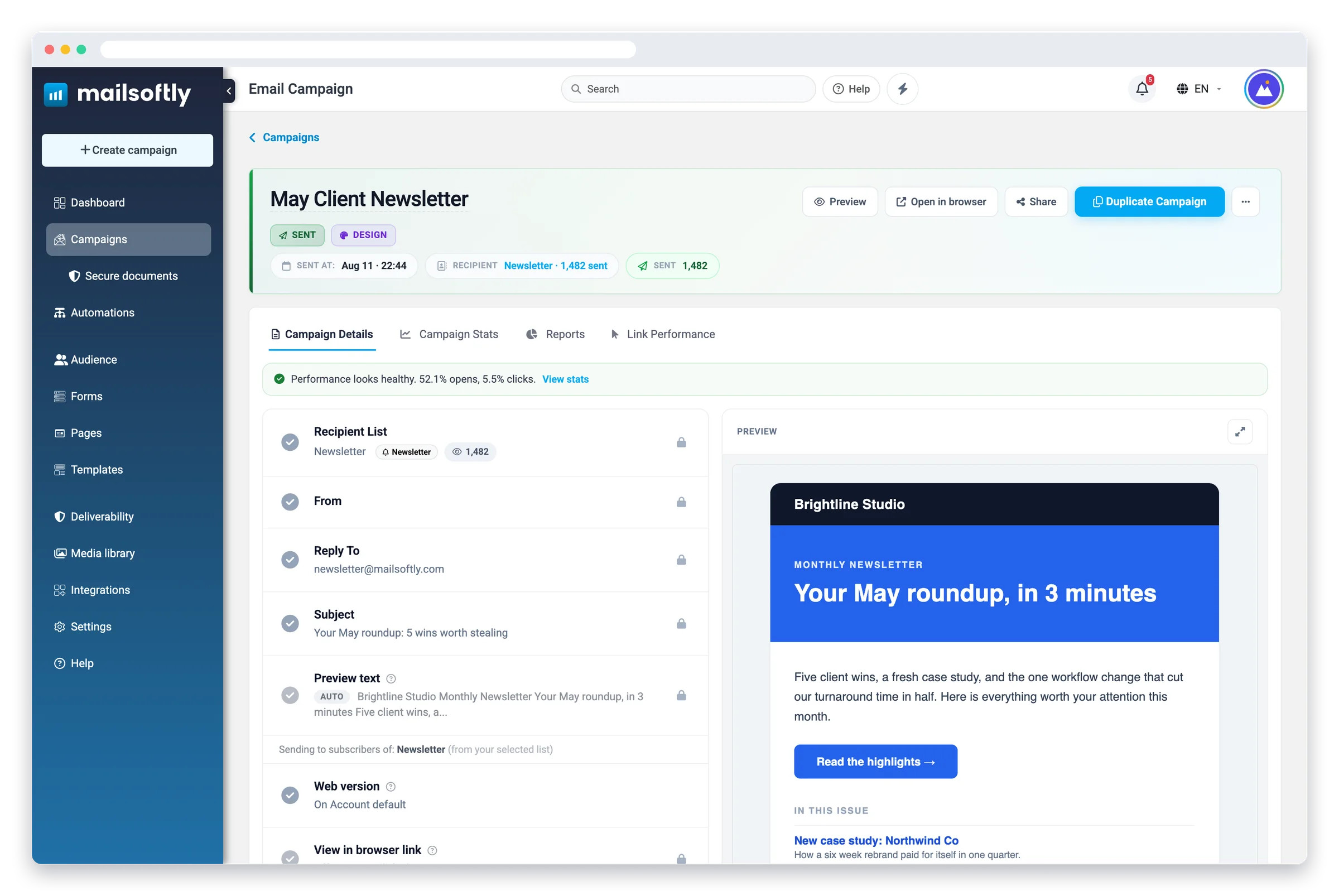
Click Save and Continue to go to the campaign page, then Send Test Email. Under Quick add click your own address, or type the addresses of a colleague who checks it, and click Send Test. The test is sent from the address in From, the same way the real issue will be, so you see it in a real inbox. Check the photo, the button and the subject line there.
Start next month’s issue from your template
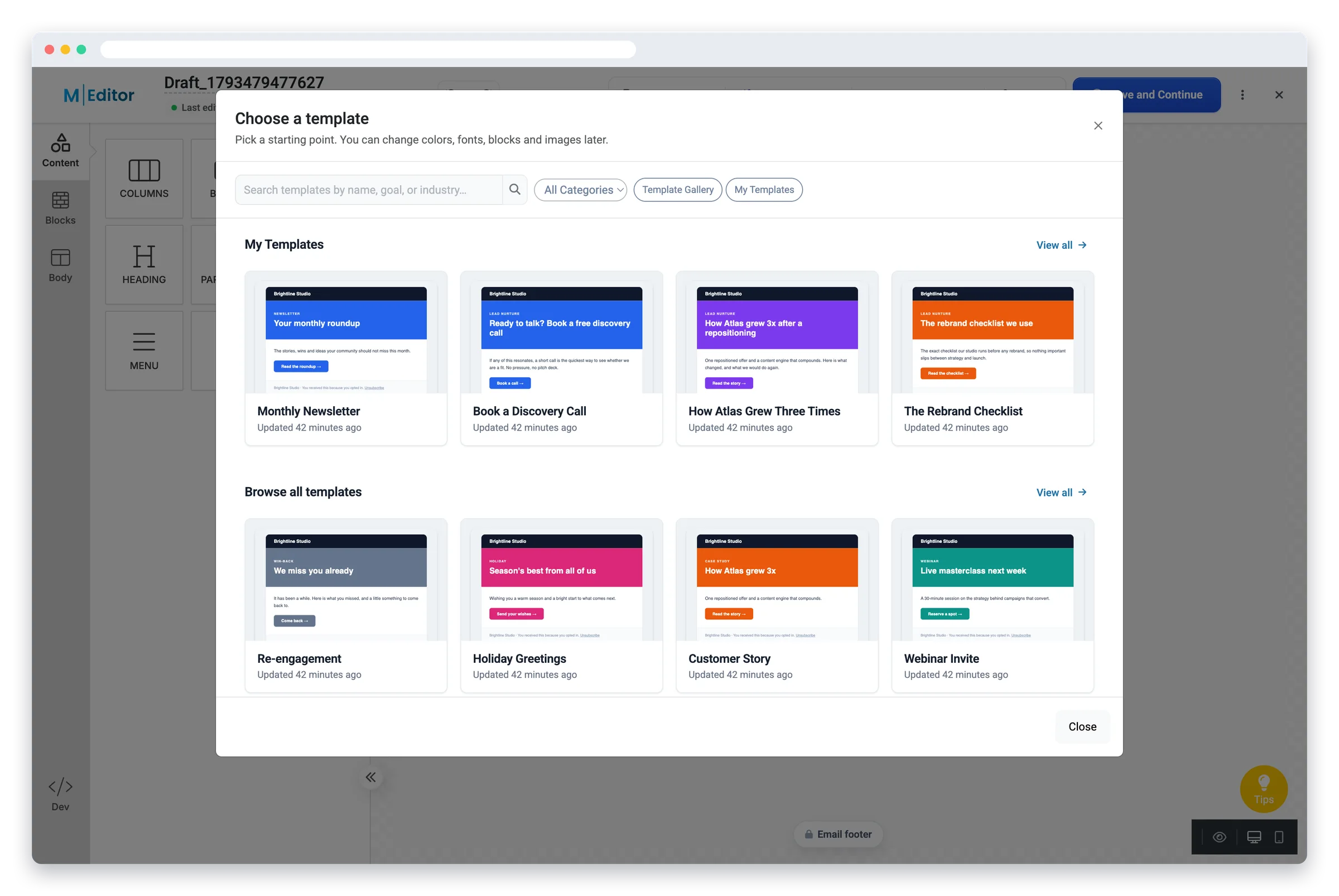
Next month, click Templates, find your newsletter under My Templates and click Use template. A new campaign opens with last issue’s layout, blocks and brand footer in place. Change the photo, the headline and the dates, and it is ready to test and send.
You can also start from Create campaign and Design: the template library that opens lists your newsletter under My Templates, above the gallery.
## Rules worth knowing – Use template always starts a new campaign. Editing it never changes the saved template, and editing the template later never changes a campaign you already made from it. – To improve the template itself, open it with the pencil on its card under My Templates; a template saves as you edit and Done saves a version. – Your campaign saves itself as you edit; the status next to the campaign name says Saved, and clicking it opens Version history. – Photos you upload are kept in your Image Gallery, so you can use them again in later issues. – On the free plan, every email ends with a small Sent with Mailsoftly line in the footer. Paid plans can turn it off.
Frequently asked questions
How do I create an email newsletter for free?
Sign up for a free Mailsoftly account, click Templates and use a template made for your industry. Add your photo with Upload Image, type your headline and sections, insert your saved blocks and brand footer, preview it on a phone and send yourself a test. Then save it as a template for the next issue.
Is there a free newsletter template for nonprofits?
Yes. When your industry is set to Nonprofits, the Templates page shows a Made for Nonprofits shelf of templates written for nonprofits, ready to edit, and the full gallery is one click away under Template Gallery. Other industries get their own shelf the same way.
How do I reuse last month’s newsletter?
Save the issue with Save as Template from the three dot menu in the editor. Next month, click Templates, then Use template on it under My Templates. You get a new campaign with the same layout and blocks.
Can I send myself a test before sending the newsletter?
Yes. On the campaign page click Send Test Email, add your own address and click Send Test. Send another test after every change you are unsure about.
Will my newsletter look right on a phone?
The templates are built to fit a phone screen. Use the editor’s preview and its phone view to check every issue before you send it, and look at your test email on your own phone.
Is it really free?
Yes, you can start free. The free plan includes the templates, the drag and drop editor, the Image Gallery, saved blocks, the brand kit and test emails. Free emails carry a small Sent with Mailsoftly line in the footer.
Ready to try it in your own account?
Free to start with your Google Workspace or Microsoft 365 account. No credit card required.