
Mail merge personalized PDFs and preview each one
Mail merge PDFs from one saved template: each recipient gets their own document with their details filled in. Name each file and preview any copy.
A PDF mail merge turns one saved template into a separate PDF for every recipient, with that person’s merge fields filled in. A renewal letter that names the member and their Membership ID, a statement with each customer’s own balance, an order summary with order 10482 on one copy and order 10483 on the next: one campaign, one template, a different document for every person on the list.
This guide builds that document and checks it. Which templates work, how merge fields and conditional lines behave inside the PDF, how the file gets its name, how to step through every recipient’s copy, and where the limits are. How the finished PDF reaches people, attached or behind a secure link, is the last step and has its own guide.
Personalized PDFs are part of attachments, which our team switches on per account. If the Attachments card is missing from your campaign page, contact support.
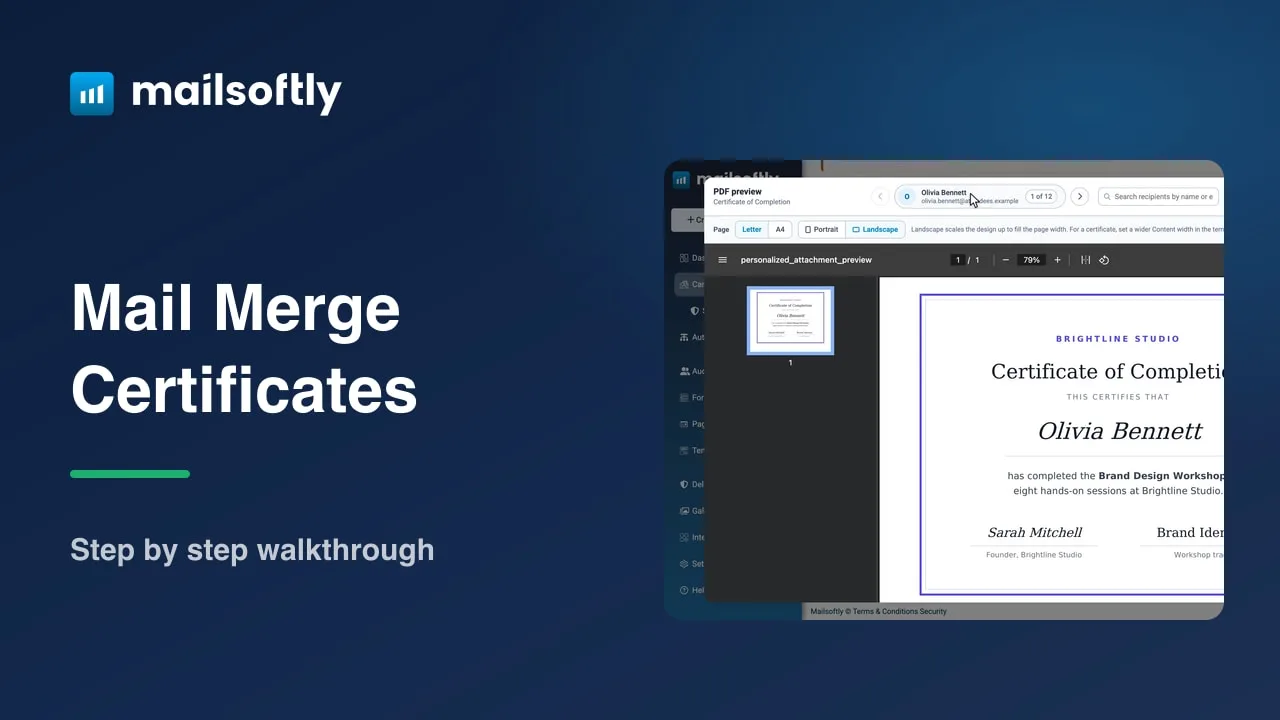
Read the video transcript
Here's how to send every attendee their own certificate, with their name on it, attached to a personal email. The usual way is a Word mail merge, which makes one big document. Then you split it, save each certificate, and attach them one by one, hoping nobody gets the wrong name.
Here's the same job, done in one campaign. Start with your email, a congratulations note for the whole workshop. Under Attachments, choose a template for the personalized attachment.
Search for certificate, and pick it. The certificate has merge fields for the name and the workshop track. The file name uses them too, so every PDF is named after its person.
Now the page. Letter is set for a US account. Switch to landscape, and the design fills the page.
Then preview the real PDFs, built for each person. Here's Olivia's certificate, with Olivia's name and track filled in. Hit next to go to the next attendee.
There's Marcus, on the Web Design track. Delivery stays on Attach the PDF, so each certificate travels inside its own email. Now review each person's copy.
Marcus's email says Hi Marcus. Send it, check the list it's going to in the next window, and confirm. Every attendee gets a personal email, with their own certificate attached.
Personal certificates for every attendee, sent in one go. Learn more at mailsoftly.com.
Build the template
The document starts life as an ordinary saved email template. Any template of your account works, whichever editor made it: the Mailsoftly editor, the classic drag and drop editor, or a plain template. Write it as the letter itself, with merge tags where each person’s details go.
A few things about how the page turns out:
- The PDF is an A4 portrait page, so design for a letter rather than a phone screen. Two-column rows from the Mailsoftly editor keep their side by side desktop layout in the PDF
- Images that fail to load are left out rather than stopping the render, so check your logo appears in the preview
- A template made in the drag and drop designer needs to have been saved once in the editor. If it has not, the preview tells you the template has no HTML version yet; open it, save it, and try again

Merge each person’s details into it
Inside the PDF, merge tags behave exactly as they do in the email body, because the template goes through the same merge. Every contact field and every custom field works, and so do the forms that keep a document readable when a value is missing:
- A fallback:
{(first_name OR "Member")}prints "Member" for anyone without a first name - A conditional block:
{(IF Renewal date)}Your membership renews on {(Renewal date)}.{(END)}prints the sentence only for people who have the date - A prefix:
{(Order2 PREFIX ", ")}adds the comma only when a second order exists
Custom fields go in by their own name, so a field called Membership ID becomes {(Membership ID)}. Values are read at the moment each PDF is built, so update a record before sending and the document follows. The merge tags guide covers every form, and Run a mail merge for emails and documents covers getting spreadsheet columns onto your contacts.

Choose the template on the campaign
Open a draft campaign, go to the Attachments card on the Campaign Details tab, and find Personalized attachment: "One PDF per recipient, filled in with their details." Its empty state explains the mechanism in one line, and Choose a template (or Browse) opens the same template picker the automation builder uses.
Pick your letter and the section takes shape: a card with a live thumbnail of the template, a Change chip that swaps it, and Remove in the section head, which asks before it takes the document off the campaign. The head of the Attachments card now counts "1 personalized PDF", so the campaign never looks empty just because it has no shared files.
The section can only be edited while the campaign is a draft. Once it is scheduled or sent, the document is read-only like the rest of the setup.

Name the file
Under the template card sits File name, with a fixed .pdf chip at the end so you never type the extension. It starts as the template name followed by the recipient’s first and last name, and you can change it to anything up to 120 characters. Merge fields work here, which is the point: Renewal letter - {(first_name)} {(last_name)} arrives as that person’s own file name, and Statement {(Membership ID)} gives every member a file they can find again.
Characters that file systems refuse, such as slashes, colons, question marks and quotes, are turned into spaces. A name that merges to nothing at all falls back to document.pdf, so give the pattern at least one fixed word.
Preview any recipient’s PDF
Click the template card, where the line under the name reads Preview PDF, and the PDF preview opens. It does not open on the first row of your list, which might be a record with nothing filled in. It opens on the first recipient who has a first name, so you see merge fields filled rather than blank.
- The header names the recipient and carries a counter such as "1 of 312", with Previous recipient and Next recipient to walk the list
- Search recipients by name or email finds anyone directly, including the person you are least sure about
- Open in new tab gives you the raw PDF to save or print
- Open this contact in a new tab takes you to the record behind the document, so you can fix a value and come back to the corrected copy
Each copy is a real render, so the preview says "Building the PDF for" and the recipient’s name for a moment first. If one person’s document cannot be built, it says "The document could not be generated for this recipient." and offers Try again, rather than pretending it worked. A preview is kept for a few minutes so stepping back and forth is quick, and editing the template, the file name or the contact makes a fresh one.
Check three people, not one: somebody with every field filled, somebody missing the field you trust least, and somebody with the longest name on the list. The empty cell and the long name are what break a layout.

Know the limits
Four limits decide whether a document fits a given campaign:
- Up to 5,000 recipients. The list or segment is checked when you choose the template, and a larger one is refused with that number named. It is checked again at send time
- Each PDF on its own must be under your account’s attachment size limit. It is not added to the shared files’ total; a single oversized PDF simply fails to build for that person
- Draft only: the document can be chosen, changed or removed while the campaign is a draft
- Attachments are switched on per account by our team; there is no self-serve switch
What happens when one person’s PDF fails to build at send time depends on the delivery. With Attach the PDF, that person’s email still goes out, with any shared files on it and without the personalized PDF. With Secure link, that person gets no email at all, because a link is never sent without its document. The same split applies to a list that has grown past 5,000 by send time: attached sends go out without PDFs, secure link sends skip everyone. A spot check in the preview is the cheapest insurance against both.

Choose how the PDF travels
Once the document reads right, choose its Delivery, directly under the file name. Attach the PDF puts it on the email. Secure link keeps it out of the inbox: each recipient gets a personal link and confirms one or two details on file before the PDF opens. Secure link is selected for new documents unless your admin changed the default.
The choice, the link placement and everything the recipient sees are covered in Send documents by secure link. If what you need is a password on the file, read Protect documents with an access code: an attached PDF cannot carry one, and the secure link is how you get there. Shared files that go to everyone are covered in Attach files to a campaign.

Frequently asked questions
Can you mail merge a PDF?
Yes. Choose a saved template as the campaign’s personalized attachment, and Mailsoftly builds one PDF per recipient when the campaign is sent, with every merge field filled from that person’s contact record, fallbacks and IF blocks included.
How do I mail merge PDFs from Excel?
Import the spreadsheet so each column becomes a contact field, write the letter as a template that uses those fields as merge tags, then choose it as the personalized attachment. Run a mail merge for emails and documents walks the import end to end.
How many personalized PDFs can I send at once?
Up to 5,000 recipients in one send, and each PDF has to stay under your account’s attachment size limit.
Can I check each PDF before it is sent?
Yes. Click the template card to open the PDF preview on a real recipient, step through the list with the previous and next buttons, or search anyone by name or email.
Ready to try it in your own account?
Attachments and secure documents are switched on by our team for each account. Sign up free with your Google Workspace or Microsoft 365 account, then ask us to turn them on.