
Enrol a whole list in an automation
Put everyone already on a contact list through an automation once, now or at a date and time, and know exactly what happens when you run it again.
Almost every automation trigger watches for the next thing that happens. Switch one on today and it does nothing at all for the people who joined last week. One trigger is the exception, and it is the answer whenever somebody asks how to send a sequence to people who are already in the account.
"Add everyone on a contact list to this automation" takes a list you already have and puts every contact on it through the flow, once. This guide covers picking the list, choosing when they enter, reading the confirmation, and what happens the second time you run it.
Pick the trigger
Open the automation and click the trigger card at the top of the canvas. The picker opens on a grid of fourteen tiles under five group headings, with a search box above it.
- The tile is called Add a contact list, and it sits in Contact Events next to Added to a list. Those two are easy to confuse and they do opposite things.
- Added to a list watches for future joins: somebody added to that list tomorrow enters the flow tomorrow.
- Add a contact list reaches backwards instead. It takes the list as it stands and runs the flow for everybody on it. People added to the list afterwards are not included.
- Hovering a tile shows the full sentence, which here reads "Add everyone on a contact list to this automation."

Open your automations in Mailsoftly
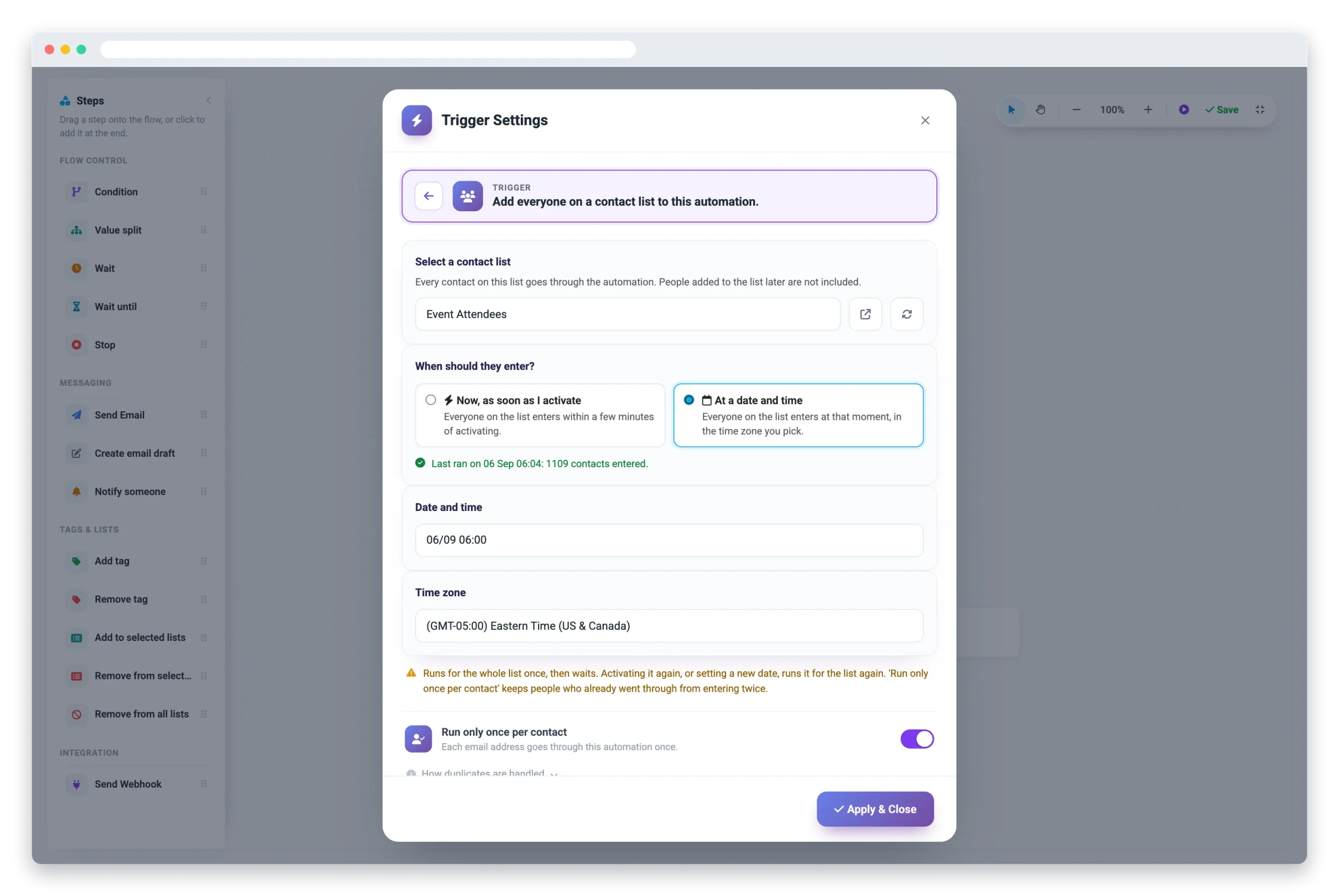
Choose the list
Pick the trigger and its settings open underneath, starting with Select a contact list.
The list is required, always, in every mode. That is deliberate rather than an oversight: without it a one-time run could quietly go to every contact in your account, and there is no undo for that.
- The help line under the picker says the rule in one sentence: every contact on this list goes through the automation, and people added to the list later are not included.
- If the right group is not a list yet, make it one first. A segment is a live query and cannot be the audience here; a list is a fixed set of people, which is exactly what a one-time run needs.
Check the list’s size before you activate. Everybody on it receives whatever the first step sends, at once. If you are testing the flow, point it at a small list first.
Decide when they enter
Under the list sits When should they enter? with two cards. This is the choice that used to confuse people, because the old wording made it sound like a setting for when the automation goes live rather than when the contacts go in.
- Now, as soon as I activate. Everyone on the list enters within a few minutes of you flipping the switch. There is no date to fill in: activating stamps the moment for you and starts the enrolment straight away.
- At a date and time. Everyone enters at that exact moment, in the time zone you pick just below. Use this for a launch morning, an event reminder, or a closing notice that has to land on the day.
Picking Now hides the date and time-zone fields, because there is nothing left to set. Picking At a date and time brings them back, and the zone defaults to your own rather than UTC.
With At a date and time, the date has to still be in the future when you activate. If the moment you set has already passed, the automation refuses to go live and tells you so. Pick a new date and try again.

Activate, then read the confirmation
Flip the switch and Mailsoftly checks the trigger and every step first, exactly as it does for any other automation. Once it runs, the trigger settings gain a green line reading Last ran on that date and time, with the number of contacts that entered.
That line is your receipt. If it is missing, the run has not happened yet.
- On Now, expect it within a few minutes of activating.
- On At a date and time, expect it just after the moment you set.
- The Contacts tab fills up at the same time, one card per contact, and each one starts from step one.
The automation does not flip to Completed afterwards. It stays Active, because the runs it just started still need it: a contact halfway through a three day wait belongs to an automation that has to still be alive when the wait ends. An automation showing Completed is an older one from before this changed.

Run it again, safely
Setting a new date, or activating the automation again, arms it for another run over the same list. That is a feature when you want it and an accident when you do not, so decide with the run-once switch which one you are doing.
- Run only once per contact on. Anybody who already went through is skipped. A second run only catches the people added to the list since. This is what you want when you are topping up.
- Run only once per contact off. Everybody on the list goes through again, including the people who received the emails the first time. This is what you want for a genuinely repeating announcement, and what you do not want by accident.
Either way the rule counts email addresses rather than contact rows, so two records sharing one address count as one person and one inbox gets one copy.
The other way to reach people who are already in your account is the Add people button in the automation header, which puts a handful of people you tick, type or paste through the flow, right away or at a start time you pick. Reach for the trigger when the audience is a whole list and the moment matters; reach for Add people when it is a handful of people you want to catch up today. Add people to an email automation covers it.


Frequently asked questions
Can I add people who joined last week to a new automation?
Yes, you can add people who joined last week to a new automation by using the ‘Add everyone on a contact list to this automation’ trigger. This trigger enrolls everyone currently on the selected list, regardless of when they joined, and runs them through the automation once.
How do I know if my contacts have entered the automation in Mailsoftly?
After activating the automation in Mailsoftly, you will see a green line in the trigger settings that reads ‘Last ran on’ with the date, time, and number of contacts that entered. The Contacts tab also fills up with one card per contact as they start the flow.
Does running the automation again send emails to the same contacts twice?
Running the automation again can send emails to the same contacts twice if you turn off the ‘Run only once per contact’ switch. If this switch is on, Mailsoftly skips anyone who has already gone through, and only new additions to the list are included in the next run.
Ready to try it in your own account?
Free to start with your Google Workspace or Microsoft 365 account. No credit card required.