
Run your email marketing from Claude or ChatGPT
Requests that work once your AI assistant is connected to Mailsoftly, from building a list and drafting a campaign to building an automation, sending on purpose and reading the results.
Once Mailsoftly is connected, Claude and ChatGPT can do the busywork of email marketing in your account: add and tag people, draft campaigns, build automations, and tell you how things went. Each request maps to a documented tool with the same rules the product enforces everywhere else, so the assistant cannot do anything your permissions and plan do not allow.
The requests below are written the way people really ask. Use them as they are, or as a pattern for your own.
The video follows the same jobs in Claude: a webinar list, a newsletter draft, an automation from one sentence and the results. The chat in it is an illustration; every Mailsoftly screen is the real product.

Read the video transcript
Here's how to use Claude for email marketing with Mailsoftly: connect it once, then build lists, drafts and automations just by asking. On its own, Claude writes good copy, but it can't see your contacts, or put anything in your account. Connected to Mailsoftly, it works right inside it.
When you connect Mailsoftly in Claude, you land on Mailsoftly's own consent screen, with every permission listed in plain language. Sending is a separate box that starts switched off. We'll leave it off, so Claude prepares everything and you press send.
Start with one question, so you both agree on the account: which lists you have, and whether you can send. Now paste today's webinar attendees. Claude creates the list, adds all five people, and tags them, in one go.
And there they are in Mailsoftly: the Webinar October list, with every contact tagged webinar. Next, the newsletter. Give Claude a short brief, and it writes the draft straight into your account, for the right list.
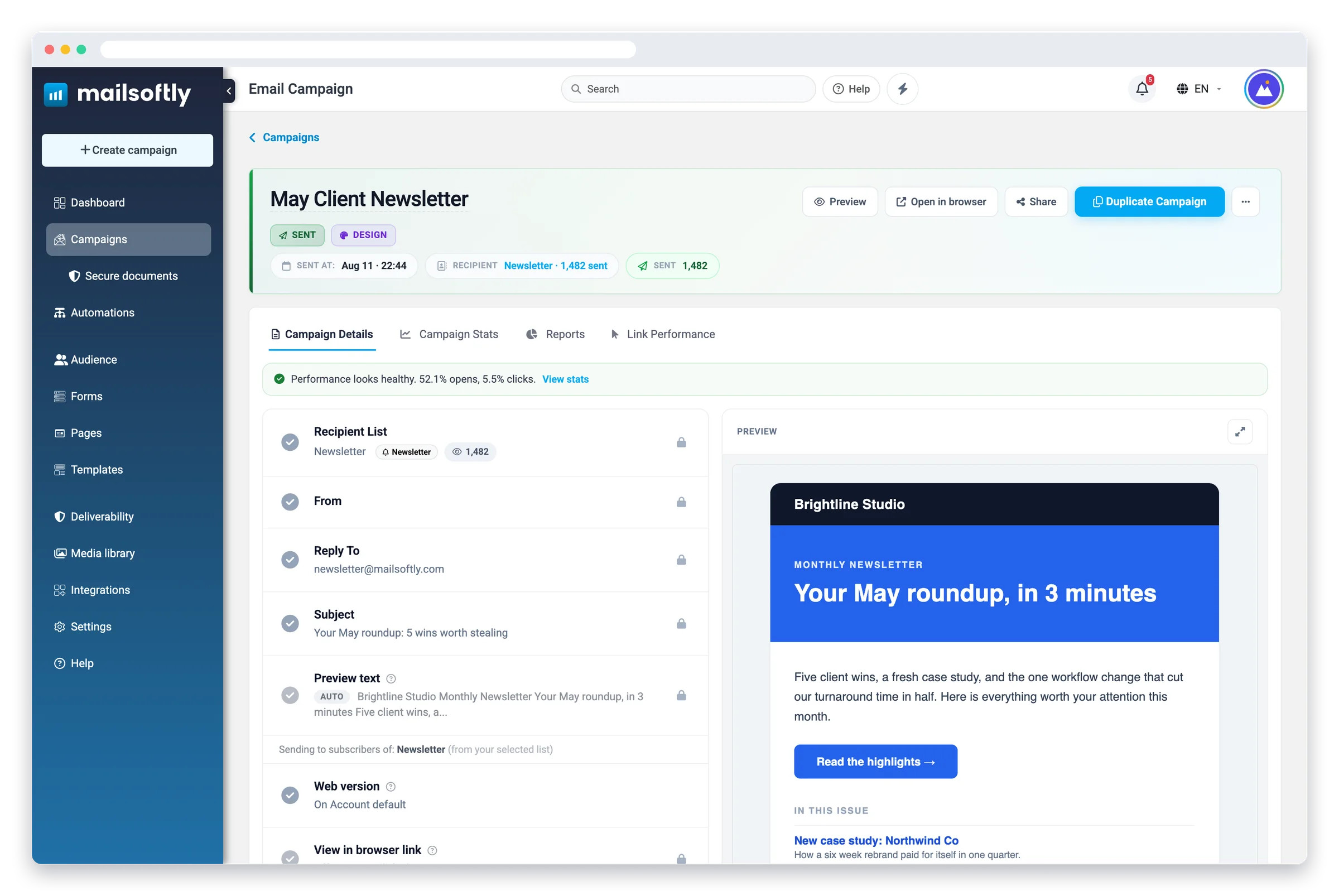
Ask for a change, and it edits the same draft, instead of making a new one. Here it is in Mailsoftly: a normal draft, with the new subject, a first name greeting, and the RSVP button, ready for you to review. Automations work the same way.
Describe the flow in one sentence, and Claude builds it for you. There's the trigger, the two day wait, the check for who opened, and the replay email for anyone who missed it. It's saved switched off, so you can check every step first.
When you want numbers, just ask. Delivered, opens, clicks, and the link people clicked most, straight from your campaign report. And when the newsletter looks right, you review and send it from Mailsoftly yourself.
Mailsoftly is free to start with your Google or Microsoft account. Connect Claude, and let it do the busywork. Start free at mailsoftly.com.
Ask what the assistant can see
Start with one question so you and the assistant agree on the account. Ask "What is my Mailsoftly plan, and which lists do I have?" It reads the plan, your contact and monthly email limits with what you have used, how the account sends, and every list with its size.
This also tells you early whether sending is open. If the account still needs a sending channel, the assistant says so now, with the steps in order, instead of at the end of a long chat.

Get the right people on a list
Campaigns the assistant drafts go to a list, so ask for lists by name. Some requests that work:
- "Add everyone from today’s webinar to a new list called Webinar October and tag them webinar", then paste the names and addresses
- "Import this CSV into the Newsletter list and update anyone who is already there", then paste the file’s text
- "Who on the Members list works at Brightline Studio?"
- "Make a segment of contacts whose city is Denver"
Segments the assistant builds filter on contact fields such as city, company, job title or your own custom fields; rules on tags or past engagement are set up in the segment builder in Mailsoftly. From the chat, segments are for finding and counting people; to email a group, ask the assistant to put those people on a list.
The plan’s contact limit applies to every contact an assistant adds, exactly as it does in the app.

Draft a campaign from a short brief
Ask for the email the way you would brief a colleague: "Draft our November newsletter for the Newsletter list: one short story about the open house, a reminder about the volunteer form, and a button to RSVP. Friendly tone, under 200 words." The assistant writes it and saves it in Mailsoftly as a draft, placed in your account’s responsive layout so you can open it in the editor.
Two other starting points work too. Say "use our Monthly Newsletter template" and the draft starts from that saved design. Paste a complete HTML email and it is stored and sent exactly as written.
Ask for changes in the same chat: "Make the subject shorter and move the RSVP button up." The assistant edits the same draft rather than creating a second one. Ask "Show me the final email and who it will reach" to see the body and the eligible audience before anything goes out.
Test, then send or schedule on purpose
Ask "Send a test to me and to my colleague" to put the draft in up to five inboxes. On a new account the first tests are checked by a person before they arrive, so send the test after your edits are done.
Sending needs the separate sending permission from the consent screen. With it, "Send it now" or "Schedule it for Tuesday at 9 am Eastern" works; a schedule needs at least 15 minutes of lead time. Both assistants can also ask you to approve the send itself before it happens.
Campaigns that send through a connected Gmail or Microsoft 365 mailbox cannot be scheduled or A/B tested from the assistant. To schedule, send from an address on your authenticated domain.
Every account’s first campaigns pass a short content review. The assistant tells you when a campaign is queued for review, and you are emailed when it is approved.

Build an automation from one sentence
Describe the flow you want: "When someone is added to the Webinar October list, send our Thank You email, wait 2 days, and if they did not open it, send the Replay email." The assistant builds the trigger, the wait, the opened-or-not condition and both emails, and saves the automation in Mailsoftly as an inactive draft.
A few things make this go smoothly:
- Each email step uses a saved template, so ask the assistant to write and save the emails first, or name templates you already have
- Waits are set in days or minutes; ask for 2 hours and it is stored as 120 minutes
- Open the automation in the builder and check every step before it goes live
Turning it on needs the sending permission and a verified account, because an active automation sends real email. Ask "Turn the webinar automation on" once you are happy with it. Later, "How is the webinar automation doing?" returns how many people entered and how each email performed.

Read the results in plain language
Ask "How did the November newsletter do?" for delivered, opens, clicks, bounces and unsubscribes with the rates. Then go deeper:
- "Which links got the most clicks?"
- "Who opened but did not click?"
- "Compare it with our account average"
The assistant reads the same report you see in the app, so its numbers match yours.

Keep the list clean
When someone asks to stop hearing from you, say "Is [email protected] unsubscribed? If not, unsubscribe them everywhere." The assistant checks the suppression list first and adds an account-wide unsubscribe. Ask "Show me this month’s unsubscribes" to review opt-outs.
Some things stay in the app on purpose: connecting a Gmail or Microsoft 365 mailbox, billing, and creating or revoking API keys.

Frequently asked questions
Can I send a campaign to a segment from Claude or ChatGPT?
Not directly. Campaigns from the assistant go to a list or to people you name. Ask the assistant to find the people with a segment or a search, add them to a list, and then draft the campaign for that list.
Why does my automation stay off after the assistant builds it?
The assistant saves every new automation as an inactive draft so you can check it in the builder first. Turning it on needs the sending permission on your connection and a verified account, and every step must be complete. Ask the assistant to turn it on once you have reviewed it.
Do the assistant’s numbers match the campaign report in Mailsoftly?
Yes. The assistant reads the same campaign report you see in the app: delivered, opens, clicks, bounces and unsubscribes, plus link clicks and per-recipient activity. If tracking was off for a campaign, the assistant says the report is not available.
Ready to try it in your own account?
Free to start with your Google Workspace or Microsoft 365 account. No credit card required.