
Schedule an email to many people
Schedule one email to a whole list in Mailsoftly. Pick the day, the time and the time zone, see the campaign waiting on its page and on the calendar, move it by dragging it to another day, and change or cancel it before it sends. Includes a video.
An email to your whole list works best when it lands while people are reading, and that is rarely the moment you finish writing it. In Mailsoftly you write the campaign when it suits you, pick the day, the time and the time zone it should go out, and it waits. You can see it on the campaign page and on the calendar, move it by dragging it to another day, and call it off right up to the send.
The video follows one example, a growing design studio inviting the people who signed up for its newsletter at a design expo to an open studio evening. The steps below are the same job in writing.
Scheduling is available once your account is approved for sending. New accounts are reviewed first, and until then Schedule for later shows an Unlock pill. While your account waits for that approval, use Send Now: a scheduled campaign from an account in review does not go out at the time you picked.

Read the video transcript
Here's how to schedule one email to a whole list, so it lands when people are reading. The usual way: stay late to press Send, set a reminder and hope you remember, or send it now and watch it get buried overnight. Here's the easy way.
Your email is ready. It goes to this list, it's from the studio, and here's the subject. Everyone on the list signed up for the studio's newsletter at the design expo.
Open Review and Send. Instead of sending now, choose Schedule for later. Pick the day and the time: Thursday, at nine in the morning.
Then the time zone. The time you pick is read in this zone, and everyone on the list gets the email at that same moment. Save the schedule.
The campaign now reads Scheduled, with the day, the time, and the time zone. Want the bigger picture? Open View in calendar, and there it is, next to everything else you have planned.
Plans change? Drag it to another day, and it keeps the same time. To change the time or call it off, open Manage Schedule.
Unschedule turns it back into a draft, and nothing is sent. The list is read when it sends, so anyone who unsubscribes in the meantime is skipped. Schedule it once, and it goes out at the time you picked.
Scheduling is available once your account is approved for sending. Learn more at mailsoftly.com.
Get the campaign ready
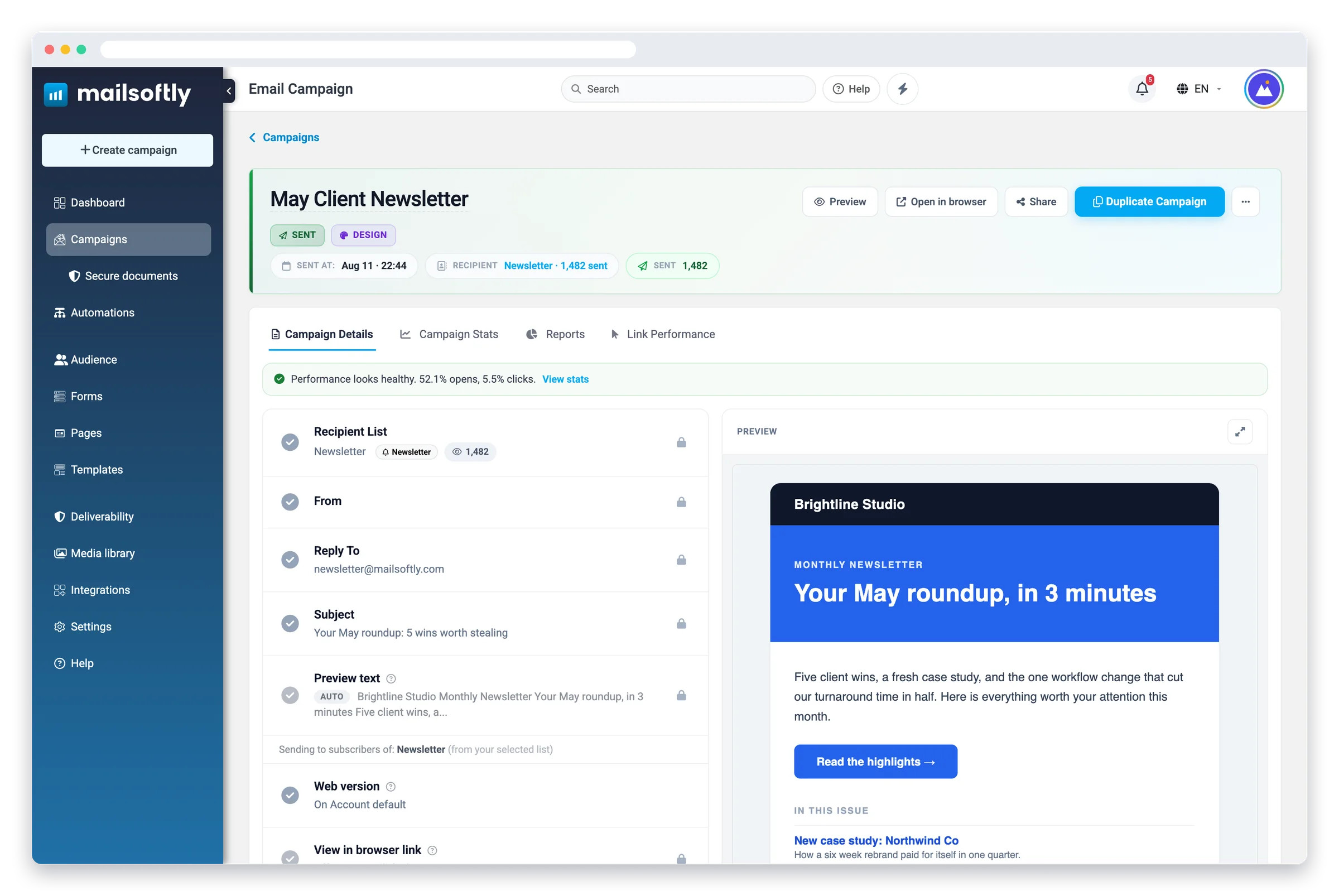
Open the campaign and set the four things every send needs: the Recipient List, the From address, the Subject and Reply To. Review & Send stays disabled, with a line naming what is missing, until all four are in place.
Only send to people who asked to hear from you, such as a newsletter sign-up or your customers. A list bought or scraped from somewhere else brings spam complaints that hurt every email you send afterwards.
Choose Schedule for later
Click Review & Send. Under the review, the send buttons sit side by side: Send Gradually, A/B Test Subject, Schedule for later and Send Now. Click Schedule for later.
If Schedule for later is greyed out, its tooltip says why: your account is still waiting for approval, or the From address is the shared test address. Pick a From address on your Google or Microsoft account or on your own verified domain and it unlocks.

Pick the day, the time and the time zone
The Schedule Campaign window opens with a suggested time already filled in. Set Date & Time to the day and the time you want, then check Time Zone.
The time you pick is read in that time zone, and everyone on the list gets the email at that same moment. If you pick 9:00 AM in America/New_York, someone reading in Los Angeles gets it at 6:00 AM their time. Mailsoftly preselects the zone your browser reports, so check it whenever you are scheduling for people in another region.
Click Save Schedule. A message confirms Campaign scheduled with the date and the zone, and the page reloads.
The time has to be at least 15 minutes from now. An earlier time is refused with Pick a time at least 15 minutes from now. To send sooner, use Send Now.

See it waiting
The status at the top of the campaign now reads Scheduled, with a clock. Under the title, the Scheduled for pill shows the day, the time and the time zone by name, such as Arizona or Eastern Time. The main button changes to Manage Schedule.
While a campaign is scheduled, its content, list and sender are locked, so what goes out is what you saw when you saved. To change any of them, unschedule it (step 6), edit, and schedule it again.
The list itself is read when the campaign sends. People who join the list before then get the email, and people who unsubscribe before then are skipped.

Move it on the calendar
Click View in calendar beside the pill. The campaign calendar opens on the right month with your campaign highlighted, next to everything else you have planned, so you can see at a glance if two sends land on the same morning.
To move it, drag the campaign to another day. It keeps the same time of day, and a message confirms Rescheduled to the new date with an Undo button, in case you dropped it on the wrong day. The clock icon on the campaign, Change send date, opens the same Schedule Campaign window to change the time as well.


Change or cancel it
Back on the campaign, click Manage Schedule. The window opens with a Currently Scheduled card showing when it is set to go. Pick a new day, time or zone and click Save Schedule to move it.
To call it off, click Unschedule and confirm. The campaign goes back to a draft, and nothing is sent until you schedule it again or send it now. The content, the list and the sender stay as they were.
## What to know before you rely on it – A campaign has one send moment. There is no weekly or monthly repeat: for a regular rhythm, duplicate a sent campaign or build an automation. – You can schedule from a Google or Microsoft From address as well as from your own domain. That account’s daily sending limit still applies, and if a list is larger than your daily limit, the schedule window says so before you save and points you to Send Gradually. – After the send time, check the campaign. It moves to Sending and then Sent. If it still reads Scheduled for a time that has passed, it did not go out: contact support.
For every scheduling option, including the time zone rules and gradual sending, see Send, schedule or pace your campaign.

Frequently asked questions
How do I schedule an email to many people?
Get the campaign ready with a list, a From address, a subject and Reply To. Click Review & Send, then Schedule for later. Pick the day and the time in Date & Time, check the Time Zone, and click Save Schedule. The campaign waits as Scheduled and goes out to the whole list at that time.
Does everyone get the email in their own time zone?
No. The time zone belongs to the campaign, not to each person. Everyone on the list gets the email at the same moment, which is the time you picked in the zone you picked.
Can I edit a scheduled email?
Not while it is scheduled: the content, the list and the sender are locked. Click Manage Schedule, Unschedule, make your changes, and schedule it again. To change only the day or the time, save a new time in Manage Schedule or drag it on the calendar.
How do I cancel a scheduled email?
Open the campaign, click Manage Schedule, then Unschedule and confirm. It goes back to a draft and nothing is sent.
Can I schedule from Gmail or Outlook?
Yes, when your From address is on a Google or Microsoft account you connected. The email goes out from that account at the time you picked, within its daily sending limit.
Can I schedule an email for later today?
Yes, any time at least 15 minutes from now.
Why can’t I click Schedule for later?
Scheduling is available once your account is approved for sending, and it needs a From address on your Google or Microsoft account or your own verified domain. The tooltip on the button says which one is missing.
Ready to try it in your own account?
Free to start with your Google Workspace or Microsoft 365 account. No credit card required.