
Send a fundraising email to your donors
Send a year-end appeal to the right donors from your own Gmail or Outlook. Record what each gift supported, build a segment from tags and that field, start from a design made for nonprofits, greet every donor by name with a clean fallback, then see who opened and who clicked to give. Includes a video.
A year-end appeal works when it reads as if it was written to one person: their name, the program their last gift supported, and one clear button to give again. The usual way is a spreadsheet of donors, one message with everyone in BCC, "Dear Friend" at the top, and no idea afterwards who read it or who clicked Give. In Mailsoftly your donors are already contacts, a segment picks the right people, every copy is personalized, and the appeal goes out from your own Gmail or Outlook with the results waiting for you afterwards.
The video follows an invented animal rescue, Cedar Hollow Animal Rescue, asking donors whose gift went to its medical fund for one more gift before the year ends. Every donor on its list asked to hear from the rescue when they gave. The steps below are the same job in writing.

Read the video transcript
Here's how to send a year-end fundraising email to your donors with Mailsoftly: personalized, segmented, and sent from your own Gmail. The usual way is a spreadsheet of donors, everyone in BCC, Dear Friend at the top, and no idea who opened it or who clicked Give. Here's a better way.
Your donors are already a list in Mailsoftly. Open Contact Fields. Click Create Custom Field, and name it Gave to.
Make it single choice, with one program per line: shelter care, medical fund, foster program and adoption events. Then click Create field. Your donor spreadsheet or your donation form fills it in for each donor.
Now open Segments to build a segment: click New Segment, give it a name, and add the first rule. Pick Tag Name, keep equals, and type Donor. Then add a condition.
It joins with or, so add Tag Name equals Lapsed, for anyone who used to give. Last, add a condition group, joined with and, and choose Gave to equals Medical fund. Create it.
The segment page counts the donors who match: fifty two, listed right below. Recalculate any time, and the segment keeps up as your tags change. Now create a campaign, and choose Design.
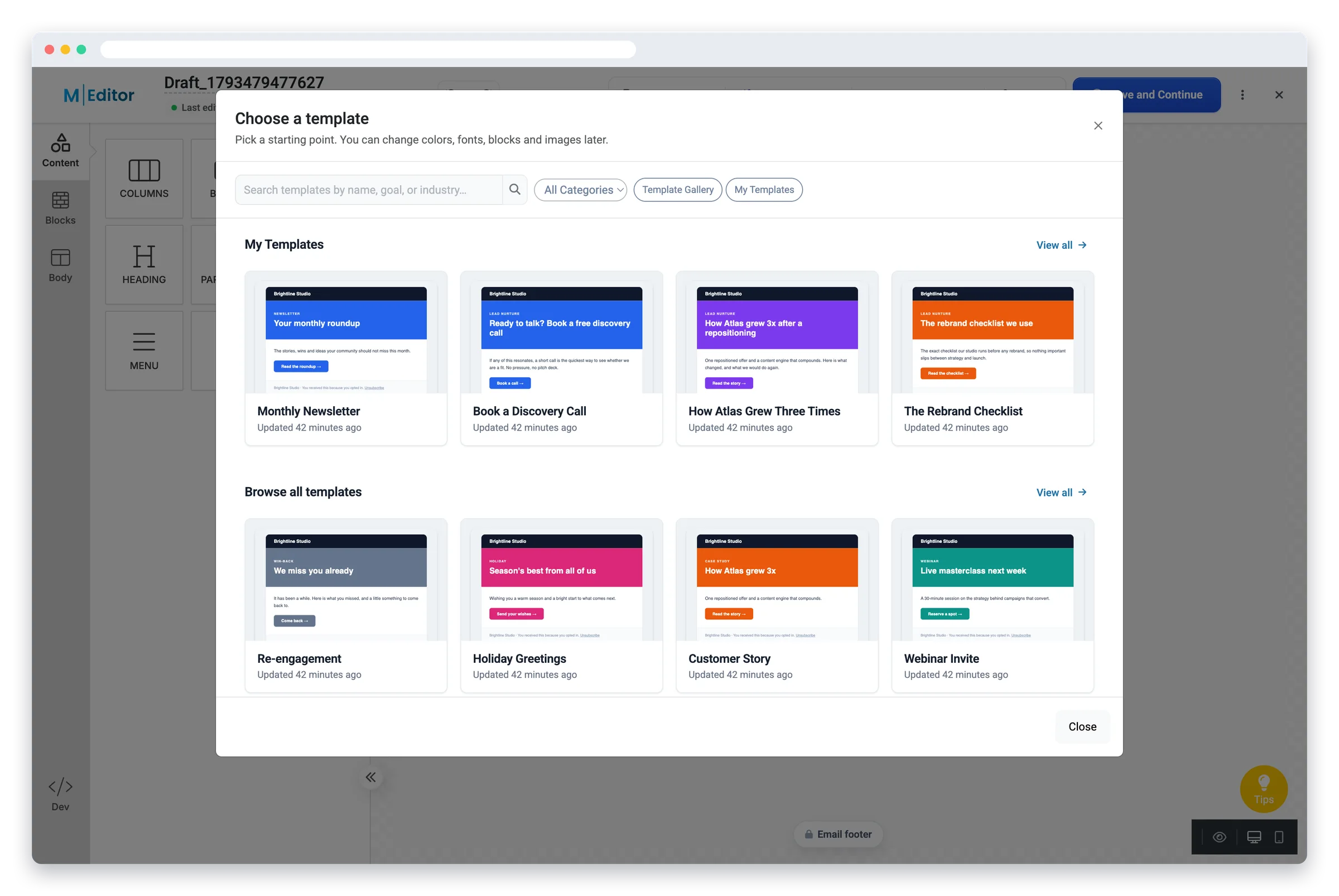
The library opens on templates made for nonprofits, picked from your industry. Preview the Year-End Appeal, and if it fits, use this design. Now make it personal.
Double click the word friend, open Merge Tags, and pick First Name. The name goes right where friend was. Then double click rescue, open Merge Tags again, and swap in Gave to, the program each donor supported.
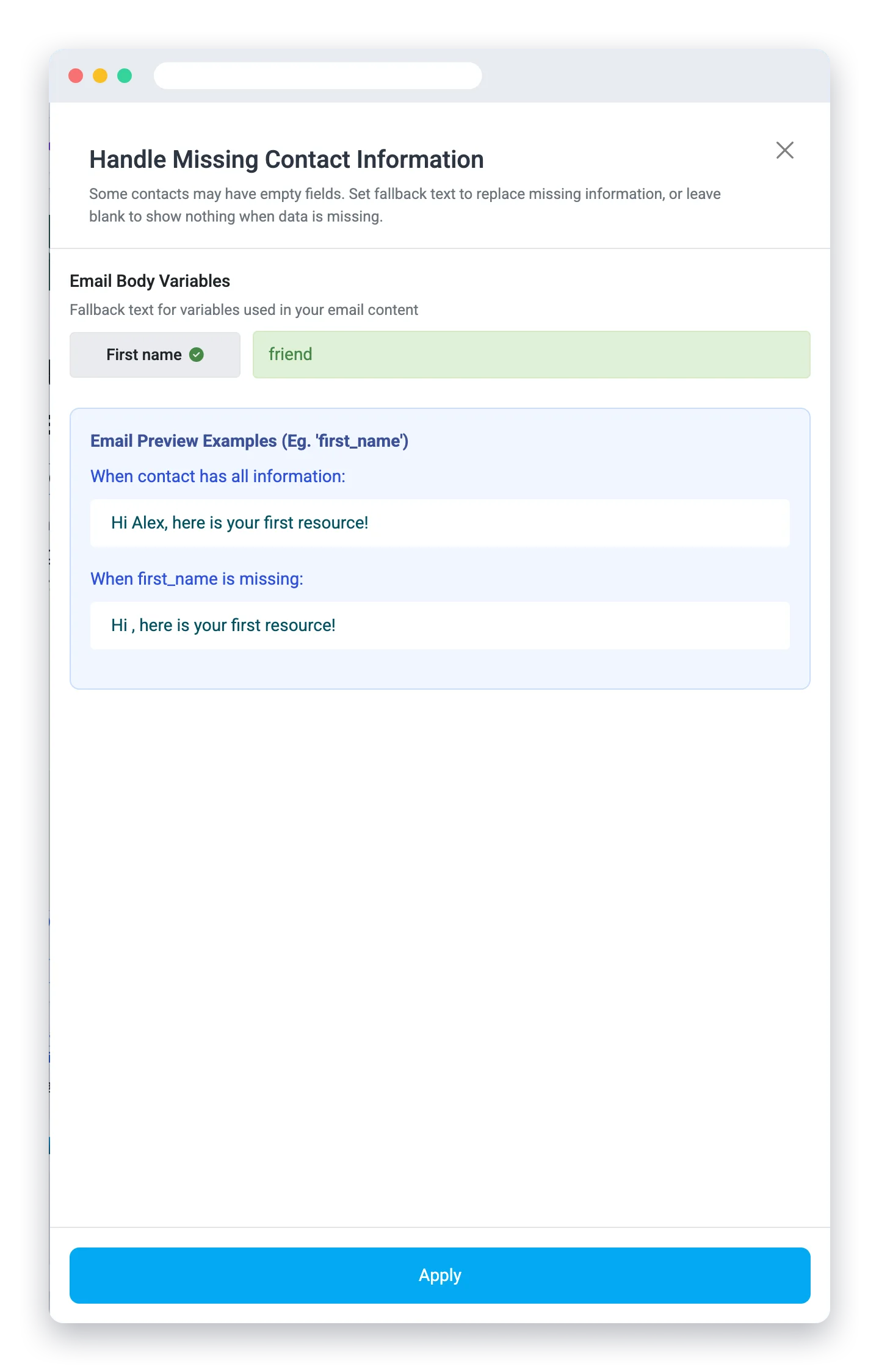
Some donors have no first name on file. In Missing contact information, type friend as the fallback, and apply. Then save and continue.
Next, the recipient. Type part of the segment name, choose it under Segments, and save. The segment picks the right people, all fifty two donors.
Then click Review and Send, to see it the way each donor will. Olivia gets her own name and the program she gave to. Step to the next donor, and Marcus gets his own.
The confirmation names the segment, fifty two contacts. Send it from your own Gmail, one copy per donor. Your first campaign gets a quick review from our team, then it goes out from your own Gmail or Outlook.
Later, Campaign Stats shows the segment it went to, who opened, and who clicked. Link Performance goes one step further. Open the Give today link, and see exactly which donors clicked it, ready for a personal thank you.
Your year-end appeal, to the right donors, from your own Gmail or Outlook. Start free at mailsoftly.com.
Record what each gift supported
Open Audience and go to the Contact Fields tab. Press Create Custom Field; in the New custom field window type a Field name such as Gave to and set Field type to Single choice. Write one program per line in the Choices box, for example Shelter care, Medical fund, Foster program and Adoption events, then press Create field. The field now appears on every contact.
Values reach the field three ways: map a column to it when you import a file, type it on a contact’s Custom Fields card, or let a signup form fill it in. A signup form answer is matched to your choices, while values you import or type are stored exactly as written, so keep the spelling the same as the choice. Field types and the rest are in Manage your contact fields.
Record the program, or a giving level, as a choice field rather than an amount. Segment rules compare custom fields as text, so "Gave to Equals Medical fund" works, while a rule such as "gave more than" is not available.


Tag your donors
Tags record who someone is to you. Put Donor on the people who give now and Lapsed on the people who gave before but not lately. You can tag one contact from the Tags card on their profile, or many at once from your contact list; Organize contacts with tags covers both.

Build the segment
Open the Segments tab and press New Segment. Give it a name, for example Year-end appeal: medical fund. Under Include contacts matching, choose Tag Name in the field menu, pick Equals and type Donor. Press Add New Condition: the new row is joined to the first one with OR, and the rocker between them shows it, so add Tag Name Equals Lapsed there. Then press Add New Condition Group, check that the rocker in front of the new group reads AND, and add Gave to Equals Medical fund. Matching ignores capitals, so donor finds Donor. Press Create Segment.
The count appears once the segment is saved: its page opens with the number of contacts, your Rules, and a Matching contacts table you can search by name or email. Press Recalculate whenever you want a fresh number. The segment keeps up with your contacts as their tags and fields change. Every option of the builder is in Segment your audience.

Open your segments in Mailsoftly
Start from a design made for nonprofits
On the Campaigns page press Create New Campaign and choose Design. Choose a template opens with shelves picked for your account: when the industry on your company profile is Nonprofits, the gallery shelf reads Made for Nonprofits, below My Templates if you have saved templates of your own, and View all opens the whole gallery of templates by industry. Hover a card and press Preview to see it full size, then Use this design.
Make it personal, with a clean fallback
Click into the headline, double click the word you want to replace, open Merge Tags in the text toolbar and choose First Name. Insert your program field the same way; it is listed as Gave to (Custom Field). A sentence such as "This year your gift went to the {(Gave to)}" now reads differently for every donor.
Some donors will have no first name on file. Open the three dot menu next to Save and Continue and choose Missing contact information. The Handle Missing Contact Information panel lists the fields the email body uses under Email Body Variables. Type a fallback such as friend next to First name and press Apply. The tag now carries it, {(first_name OR "friend")}, so a donor with no first name reads "Before the year ends, friend" instead of a gap. Today the panel leaves out fields whose name contains a space, such as Gave to, so send to a segment in which everyone has that field filled, as this one does, or give the field a one word name such as Program if you want a fallback for it. Press Save and Continue when it reads right.
Every form of merge tag is in Personalize emails with merge tags.
Send it to the segment from your Gmail or Outlook
On the campaign page open Recipient List and pick your segment under Segments (dynamic); typing part of its name filters the list. The row then shows its name with a Segment pill and its number of contacts. Finish tagging and filling in the field before this step, so everyone you just tagged is part of the send. Write a Subject, which takes the same tags, for example {(first_name OR "Friend")}, one more gift before the year ends, and add a Preview text. The From address is your connected Gmail or Outlook mailbox; Send with Google Workspace or Microsoft 365 shows how to connect one.
Press Review & Send. Review before sending shows the Recipient row with your segment and its number of recipients, and the email as one real donor will get it. Step through a few donors with the arrows and check that each copy carries their own name and program. Then press Send Now, which carries the Google or Microsoft mark of your mailbox, and confirm with Yes, Send Now. Each donor gets their own copy from your own account, a few seconds apart.
Your first campaign gets a quick review from our team, then it goes out from your own Gmail or Outlook. Until then it shows as Under Review in your campaign list.


See who opened and who clicked to give
Open the sent campaign and go to Campaign Stats. The Recipients tile carries a segment chip, and Open Rate and Click Rate show how the appeal did. Below them, Detailed Statistics lists every donor, with Clicked, Opened and Not opened filters for your follow up.
Then open Link Performance, which every plan includes. Switch to the list view and expand your donate link to see Contacts who clicked this link, with each donor’s name. Track campaign results explains every view.


Frequently asked questions
Can I send a fundraising email to donors for free?
Yes, you can start free. A free Mailsoftly account can add the custom field, tag donors, build the segment, personalize a template made for nonprofits, send from your connected Gmail or Outlook and read who opened and clicked. Emails sent on the free plan carry a small Mailsoftly badge, and your first campaign gets a quick review from our team before it goes out.
Can I send a campaign straight to a segment?
Yes. A segment is a recipient just like a list: pick it under Segments (dynamic) in the Recipient List row, and the segment picks the right people by its rules. Finish your tagging before you pick it. Anyone who has unsubscribed is left out for you.
Can a segment pick donors by gift amount?
No. Segment rules compare custom fields as text, with operators such as Equals, Contains and Is Empty, so there is no greater than or less than. Record what the gift supported, or a giving level, as a Single choice field and build the segment on that.
Ready to try it in your own account?
Free to start with your Google Workspace or Microsoft 365 account. No credit card required.