
Share documents securely by email with a secure link
Share documents securely by email: each recipient gets a personal link to their own PDF and confirms their details before it opens. Nothing sits in the inbox.
Secure document sharing by email means the PDF never travels inside the message: the email carries a personal link, and the recipient confirms who they are before the document opens. Some documents should never sit in an inbox. A statement, a renewal letter with a member number on it, an account summary: an email can be forwarded, read over a shoulder, or land in the wrong mailbox because of one typo in an address. A secure document keeps the PDF out of the email altogether. Each recipient gets a personal link, and before their PDF opens they confirm one or two details you already hold for them. Nothing sensitive sits in the inbox, and a forwarded email is not enough to read the document.
The document itself is the same personalized PDF you would otherwise attach: one saved template, rendered once per recipient with their merge fields filled in. Building it is covered in Create and preview personalized PDFs. This guide covers the delivery: the choice, the settings on the card, the send, and what the person on the other end actually sees.
Secure documents are available on request, and our team switches them on for your account together with attachments. If you do not see the Attachments card on your campaign, or the Secure documents item in the sidebar, contact support.
What the video shows
- Hey!
- Let's send every member their own renewal letter as a
- PDF, and keep it private with an access code.
- So why not just attach it?
- Because an attachment sits in the inbox for good,
- anyone it gets forwarded to can open it,
- and you never know if it was opened.
- Secure documents fix all three.
- On your campaign, choose a template for the
- personalized attachment.
- Search for renewal, and there's your membership
- renewal letter.
- Pick it.
- Mailsoftly turns it into one PDF per person,
- with their details filled in.
- Merge fields work in the file name too,
- so every PDF carries that person's name.
- Click Preview PDF to see the real file,
- built for one person.
- Here's Emily's letter, with the member number already
- in it.
- Hit next to move to the next member.
- Here's Jason's letter.
- You can check anyone on the list before it goes out.
- Now, delivery.
- You can attach the PDF, or send a secure link.
- Let's go with the link, so nothing sensitive sits in
- the inbox.
- Choose what people confirm first.
- Pick the access code, and Mailsoftly creates a
- different code for every single person.
- For extra protection, tick this,
- and the downloaded PDF asks for the same code every
- time.
- Next, open where the link appears,
- and copy the tag.
- Paste it into your email,
- and everyone gets their own link.
- Then set how long the link works.
- Here's what your member sees.
- They open their link, and before anything shows up,
- they confirm it's really them.
- They type the code you gave them,
- by phone or in a letter.
- And there it is.
- Their letter, ready to download,
- and nobody else can open it.
- Back in Mailsoftly, the Secure documents page tracks
- every link.
- Viewed, locked, expired or turned off,
- you see it at a glance.
- Open the details to see exactly when it was opened and
- downloaded.
- Someone got locked out?
- Review and resend sends a fresh link with a brand new
- code, and the old one stops working.
- Private documents, sent the easy way,
- to everyone on your list.
- Learn more at mailsoftly.com.
Choose the document and the delivery
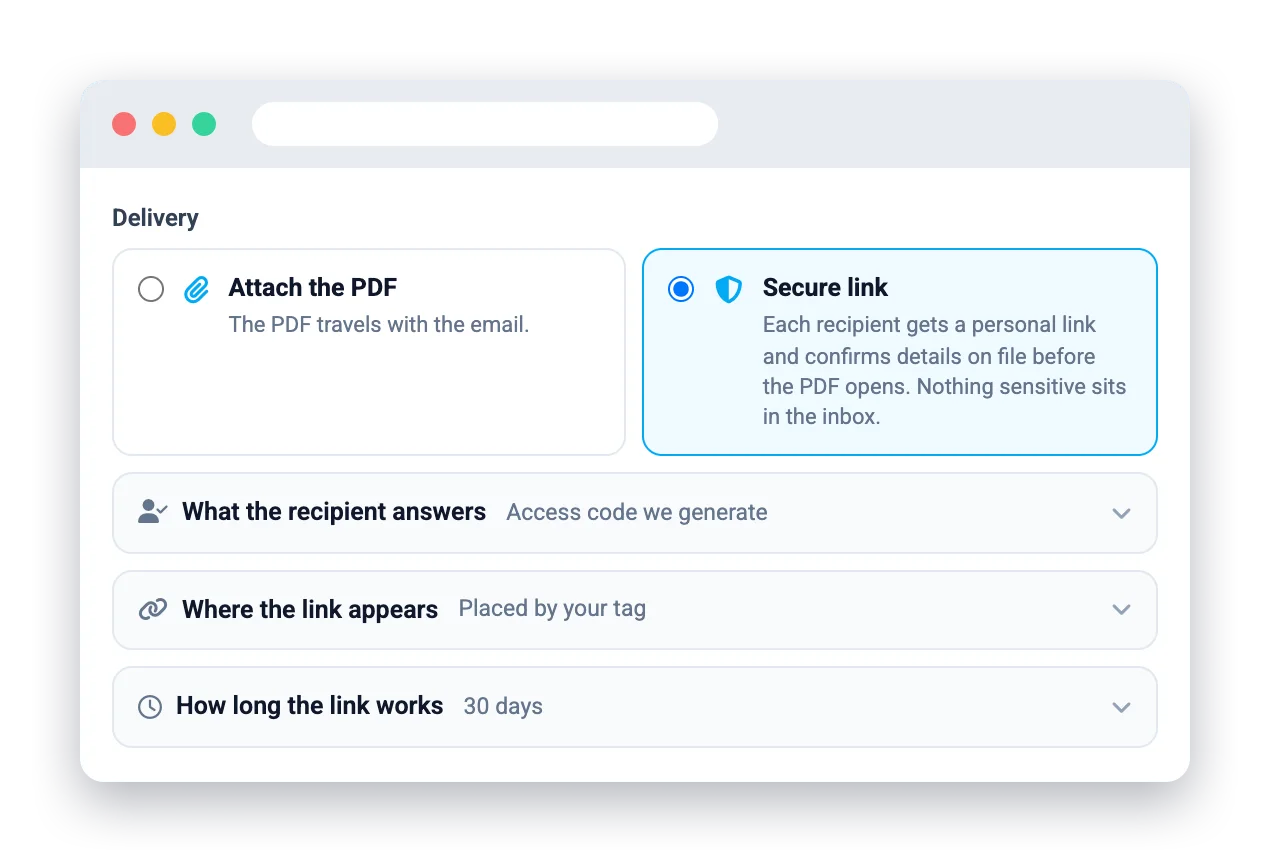
Open a draft campaign and go to the Attachments card on the Campaign Details tab. In the Personalized attachment section, press Choose a template and pick the letter or statement you built. A new block, Delivery, appears under the file name with two cards:
- Attach the PDF: "The PDF travels with the email." Every recipient gets their own PDF as an ordinary attachment.
- Secure link: "Each recipient gets a personal link and confirms details on file before the PDF opens. Nothing sensitive sits in the inbox."
Secure link is already selected for every newly chosen document, unless an admin has made Attach the PDF the account default. A campaign saved before this choice existed keeps sending its document attached until you change it.
Which one to pick comes down to what the page says. Attach the PDF suits documents that are fine to sit in a mailbox and that people like to keep offline: an event ticket, a course certificate, a program. Secure link suits anything that carries personal or account details: statements, renewal letters, balances, order histories. An attached PDF goes out exactly as it is and cannot carry a password, so if you were looking for a way to protect the file, Secure link is where that starts; Protect documents with an access code covers it.
Open your draft campaigns in Mailsoftly
Choose what the recipient answers
With Secure link selected, the first panel is What the recipient answers. Until you pick something its head reads "Nothing chosen yet". Open Choose a field, and if you want a second question, Second field (optional). The help line is the whole brief: "One or two fields from the contact record. Pick things only the person would know."
- Access code we generate: Mailsoftly creates a different code for every recipient at send time, and you pass it on another way
- Date of birth, Postal code, Mobile phone or Work phone from the contact record
- Any custom field of your account, by its own name, such as Membership ID
Name and email are never offered, because they are written on the envelope already. When you choose two fields, both must match. A field that one of your signup forms writes to is refused, because anybody filling in that form could set the answer themselves. The access code, the form rule and the lock on the downloaded file each get a full explanation in Protect documents with an access code.
A campaign set to Secure link with no field chosen will not send. Every send path stops with a message asking you to open the document card and choose a field first.

Place the link in your email
The next panel, Where the link appears, holds the tag that becomes each person’s link: {(secure_document_link)}. Press Copy tag (a small "Copied" confirms it), open your email in the editor, and put it where the link belongs.
- Paste it as plain text in a sentence, and it turns into a clickable link on its own when the email is sent
- Or add a button and paste the tag into the button’s link field instead of a web address
- The tag is also in the merge tag menus as Secure document link: in the Mailsoftly editor and the classic drag and drop editor while the campaign sends a secure link, in the campaign’s personalize list, and in the plain template editor
The head of the panel tells you where things stand. Placed by your tag means the email carries it. Button added at the end means it does not, and Mailsoftly will add a button reading "View your document" at the bottom of the email, in your brand colour, with a short line under it telling the reader that the link is personal and that they will confirm a few details. That button speaks the language your email is written in. Tag required means an admin has switched the automatic button off for the account: then the email must carry the tag, and anyone whose email would go out without it is skipped.
Two more things are true of this link. It is never click tracked and never gets UTM parameters, and in every preview and editor render the tag shows the address of a sample page, never a real link.

Set how long the link works
How long the link works holds a single number, Link works for, in days: anything from 1 to 90, starting from your account default of 30 unless an admin changed it. The clock starts when the email is sent, not when the person first opens it.
Under the field, a line tells you how long the document is kept after the link stops working, so you can still resend it: 7 days by default. Change account defaults takes an admin to the settings where both numbers are set for every new send.
While the link works, the recipient can come back as often as they need and download the PDF as many times as they like. Each visit asks for the details again after ten minutes, so a laptop left open on the document does not stay open for good.

See the page recipients get
Before sending, press See the page recipients get. It opens the exact page your recipients will land on, marked with a Sample page badge, with the boxes for the fields you chose on this campaign and the inputs switched off so nothing can be submitted.
The page carries your logo and brand colour. The heading, the intro and the contact box can be reworded for the whole account: Edit its wording takes an admin to those settings, which Track and resend secure documents walks through.

Send, and send a test first
Secure link never sends a link without its document behind it, and never sends someone a question they cannot answer. So a few recipients may be skipped, and Mailsoftly tells you who before anything goes out. The card warns, and the send confirmation repeats it, in a line like "12 recipients have no Membership ID on file and will be skipped."
- Missing value: a recipient with no value in a field you chose gets no email
- Document could not be built: if one person’s PDF fails to render, for example because it grew past your account’s attachment size limit, that person gets no email rather than a link to nothing
- No tag: with the automatic button switched off, an email without the tag is skipped
A skipped recipient gets no email at all. Fill in the missing value or fix the template, then send those people the document again, for example in a campaign to just them. Shared files, if the campaign has any, still travel on the email for everyone who receives it.
Send a test to yourself first. A test issues a real link against your own contact record, so you can click through the whole journey. If your own record has no value for one of the chosen fields, the test email carries the sample page address instead.
Once the campaign has gone out, the card shows See the links sent for this campaign, which opens the Secure documents page filtered to it.

Know what the recipient sees
It helps to know the other side of the link, because that is where support questions come from.
- The email: your message, with their personal link where you placed the tag, or the View your document button at the end
- The Confirm it’s you page: your logo on top, the line "To protect your privacy, please confirm the details below before your document opens.", and one box per field, labelled with the field’s name
- A date can be typed or picked from a calendar, and either day first or month first is accepted. An access code is shown as XXXX-XXXX, and capitals and dashes do not matter; for any other field, spaces, dashes and capitals do not matter either
- The button reads Open my document, and under it: "Your answers are checked against the sender’s records and are never stored."
- A Contact box shows your phone, address and a short note if you set them, otherwise it tells the person to reply to the email they received
A wrong answer brings the same page back with "Those details did not match what we have on file. Please check them and try again." It never says how many tries are left. A correct answer opens the document page: the file name as the heading, "Your document is ready. This link works until" and the date, a Download PDF button, the PDF itself shown in the page, and a closing line asking them not to forward the link.
When a link has expired, been turned off, been replaced by a newer one, or locked after too many wrong answers, every one of those cases shows the same neutral page, "This link can no longer be used", asking the person to contact the sender for a new one. A link paused after wrong answers says when they can try again instead. The page speaks the recipient’s browser language when it can, and your account’s language otherwise.


Send documents from an automation
The same delivery works in automations. Open a Send Email step and find the Personalized document (PDF) block: "A document built for each contact from one of your templates, such as a letter, with their details filled in. Attach it to the email or send it as a secure link."
Pick a template (or No document to leave it off), set the file name, then choose the Delivery exactly as on a campaign. With Secure link you choose the fields under Recipient confirms, set Link works for, and place the tag: "Paste this tag into the email template this step sends, wherever you want the link." A step that already had a document before Delivery existed shows Attach the PDF until you change it.
Once the automation has sent links, See the links this automation has sent opens the Secure documents page filtered to that automation.
That is the whole loop: pick the document, choose what the person confirms, place the link, check the sample page, and send. To add a per-person access code and lock the downloaded file, read Protect documents with an access code. To follow up on who opened what, resend a letter or turn a link off, read Track and resend secure documents.

Frequently asked questions
What is a secure document link?
A personal web address in the email instead of the PDF itself. The recipient confirms an access code or a detail on file, then views and downloads their own document. The link stops working after the number of days you set, 30 by default.
Is a secure link safer than an email attachment?
For sensitive documents, yes. An attachment sits in the inbox and opens for anyone the email is forwarded to. A secure link asks for something only the person knows, expires on its own, can be turned off at any time, and shows you when it was opened.
What does the recipient see when they open the link?
A Confirm it’s you page with your logo. After a correct answer they see their document, a Download PDF button and the date the link stops working. Too many wrong answers lock the link.
Can an automation send documents by secure link?
Yes. An automation’s Send Email step has the same Personalized document (PDF) block with the Delivery choice, so a welcome letter or a renewal notice can go out as a secure link on its own.
How long is the document kept?
While the link works, and by default 7 more days after it stops, so you can still resend it. An admin can set anything from 1 to 90 days. A fingerprint of the file stays after that, so you can prove exactly which document was sent.
Ready to try it in your own account?
Attachments and secure documents are switched on by our team for each account. Sign up free with your Google Workspace or Microsoft 365 account, then ask us to turn them on.