
Send automatic follow-up emails that stop when they reply
Follow up automatically with people who asked to hear from you, such as everyone who requested an estimate, and skip the rest of their follow-ups once they reply. Sent from your own Gmail or Outlook with a Mailsoftly automation. Includes a video.
Someone asks for an estimate, a quote or a call, you answer, and then nothing comes back. The usual way to follow up is a reminder in your calendar, a search through your sent mail to see who answered, and a copy of the last email sent again by hand. Do it for twenty people and someone who already said yes gets chased anyway. In Mailsoftly one automation sends the follow-ups for you from your own Gmail or Outlook, and when someone replies, the rest of their follow-ups are skipped.
The video follows one example: a design studio whose Request a project estimate form starts three short emails, three and four days apart. The steps below are the same job in writing, and they work for any request people send you: a quote, an application, a booking question.
Follow up only with people who asked to hear from you, such as someone who sent your form. This is not a tool for cold outreach.
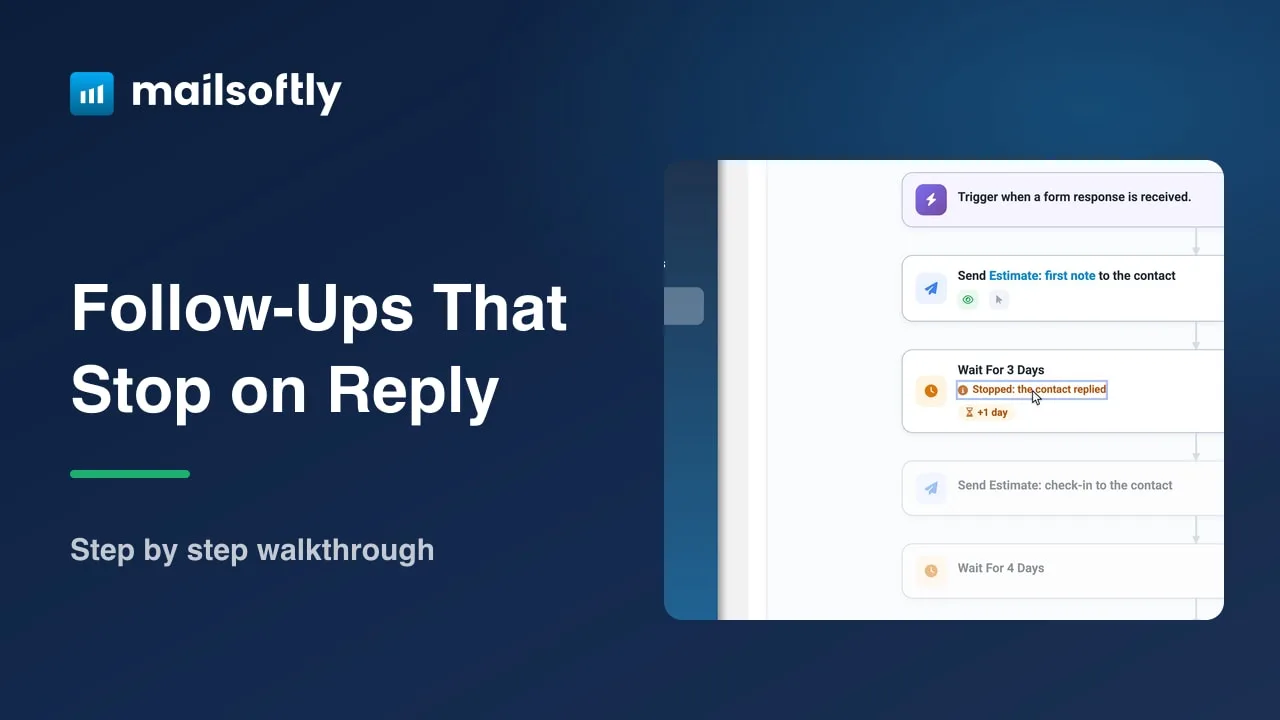
Read the video transcript
Here's how to send automatic follow-up emails that stop when they reply, with Mailsoftly. The usual way is a reminder in your calendar, a search through your sent mail to see who answered, and the last email copied and sent again. Sooner or later, you chase someone who already said yes.
Here's a better way. Brightline Studio follows up on estimate requests with one automation: three short emails, with a few days between each, and nothing more to remember. Open the trigger.
It starts when someone sends the Request a project estimate form, so everyone here asked to hear from you. Check that Stop when the contact replies is on. When someone answers any of these emails, the remaining follow-ups are skipped, so nobody who already answered gets chased.
Apply. Open the first email. It greets each person by their first name.
Now the sender. The list shows your verified domain first, and your connected mailbox below it. Pick your connected Gmail or Outlook mailbox.
Replies are read from your own mailbox, so the follow-ups must send from it. Reply to follows it. Apply.
Do the same in the second email. Open it, check the subject, then click Sender, and pick your mailbox. Reply to follows along.
Apply. And the last one, the same way. Each follow-up is a new email with its own subject line, so give each one its own words.
Open the first wait: three days before the first follow-up goes out. Apply. Then comes the second email, a wait of four more days, and the last note.
Save the automation, and wait for Saved in the toolbar. Then switch it on, at the top right. A summary shows the trigger and the three emails.
Activate, and it's live. A few days later, on the Contacts tab: Jordan and Elena replied, so the rest of their follow-ups were skipped: Inactive. Marcus hasn't answered yet, so his follow-ups keep going.
Open Jordan's run, and the step it was waiting on shows why: Stopped, the contact replied. Open Marcus's run: his second follow-up went out three days later, on schedule. On the Performance tab, under the engagement funnel, below sent, opened and clicked, it counts the replies: two so far.
Your follow-ups go out from your own Gmail or Outlook, and stop when people answer. Follow up with the people who asked, and stop when they answer. Free accounts run one automation at a time, once your account is verified.
Start free at mailsoftly.com.
Build the automation
Go to Automations and click Create New Automation, then start blank. In the trigger picker, choose what starts the follow-ups. For requests that come in through a Mailsoftly form, pick Form response received under Engagement, and under Select a Form choose your form. Other starts work too, for example Tag is added or Added to a list, or adding people by hand with Add people.
Then add the steps: a Send Email, a Wait, a second Send Email, another Wait and a last Send Email. Three days and then four more is a sensible rhythm; the Wait step offers Days and Minutes. Give each email its own subject, such as "Checking in on your estimate request" and "Should we keep your request open?", because each follow-up arrives as a new email, not as a reply in the same conversation.


Turn on Stop when the contact replies
Click the trigger to open Trigger Settings. Below the trigger you will find Stop when the contact replies: "When someone replies to any email in this automation, their remaining steps are skipped." It is on by default for a new automation once your account has a connected Gmail or Outlook mailbox. Leave it on, and keep Run only once per contact on so nobody gets the series twice. Press Apply & Close.
What counts as a reply: any answer to any email of this automation, received in the mailbox it was sent from. Automatic answers, such as an out-of-office message, do not count, so someone who is away keeps getting the follow-ups. Replies are checked regularly, about every ten minutes, not the instant they arrive, and each step checks again just before it sends.
If the switch shows a lock and Connect a mailbox, no Gmail or Outlook mailbox is connected yet. If it says your mailbox needs reconnecting, open Integrations and reconnect it; until then replies are not read. A draft built before you connected your first mailbox gets the switch turned on when you connect it; an automation that was already running keeps its setting, so check Trigger Settings. If some emails send from your domain address, the panel says how many: replies to those cannot stop the follow-ups.

Send every email from your connected Gmail or Outlook
Replies are read from your own connected Gmail or Outlook mailbox, so the follow-ups must be sent from it. Click each Send Email step, choose the email under Choose an email (or write a new one), write the Subject, and open Sender. Pick your mailbox, for example "[email protected] (Google Workspace Account)". If your account also has a verified domain, the picker lists Your verified domain first and Your connected mailbox below it: pick the mailbox. Reply to then switches to the mailbox address, so answers land where Mailsoftly reads them. Press Apply & Close and do the same in every Send Email step.
An email sent from your verified domain address cannot be matched to a reply, so for that step Stop when the contact replies does nothing and people who answered still get the next email. Only the person who connected a mailbox can pick it as the Sender; teammates see it greyed out. If Mailsoftly asks whether to run the automation from your mailbox or your domain when you switch it on, keep the mailbox.
Use the First Name merge tag in the subject or greeting so every email is addressed to the person; Personalize emails with merge tags covers fallbacks such as "there".

Save and switch it on
Press Save in the builder toolbar, then switch the status at the top right from Draft to on. Activate this automation? sums up the trigger and the emails; press Activate. The status reads Active, Running, and everyone who sends your form from now on starts the series.

See who replied
Open the automation’s Contacts tab. Each person has a card with their progress:
- Someone who replied shows Replied. Expand the card and the step they were waiting on reads Stopped: the contact replied, with the follow-ups after it never run.
- Someone who has not replied keeps a green switch, and their steps show how long after they entered each one ran, for example +3 days for the second email.
The Performance tab counts the answers under the engagement funnel, for example "2 replies received", next to emails sent, opens and clicks. Measure automation performance explains the rest of that page.
## Other ways to react to a reply – A Wait until step with Continue as soon as set to Contact replies to the email moves on once the contact answers the last email, with a time limit if they never do. – A Condition with Did the contact reply? sends people down a YES or NO branch, for example to notify your team about everyone who replied. It checks the most recent email this automation sent. See Branch your automation with conditions.
Both need a connected Gmail or Outlook mailbox, for the same reason as the switch.
## Before you rely on it – Switching an automation on needs a verified account. Accounts that sign up with Google Workspace or Microsoft 365 are usually verified straight away; others are reviewed by our team. Forms collect responses once your account is approved for sending. – The free plan runs one automation at a time. If another automation is active, pause it or upgrade before you switch this one on. – A connected mailbox has a daily sending allowance. If a day’s sending reaches it, the next emails wait and go out once there is room again. – Run only once per contact means someone who went through the series, for example because they replied, will not start it again if they send the form a second time. Turn it off if repeat requests should get their own follow-ups. – Replies to an email more than 30 days old are not picked up, so keep the waits in a follow-up series short. – If an automation will not switch on, Fix an automation that will not activate lists every reason and its fix.

Frequently asked questions
How do I send an automatic follow-up email if there is no reply?
Build an automation with a Send Email step, a Wait, and another Send Email, turn on Stop when the contact replies in Trigger Settings, and send every email from your connected Gmail or Outlook mailbox. People who reply have the rest of their follow-ups skipped; everyone else gets the next email after the wait.
Does it work if I send from my own domain?
No. Replies are read from your connected Gmail or Outlook mailbox, so the follow-ups must be sent from it. Emails sent from a verified domain address cannot be matched to a reply.
How fast does Mailsoftly notice a reply?
Replies are checked regularly, about every ten minutes, and again just before each step sends. With waits of days between emails, a reply always lands well before the next follow-up.
Does an out-of-office reply stop the follow-ups?
No. Automatic answers such as out-of-office messages are recognized and not counted as replies, so the follow-ups keep going. A real answer from the person skips the rest.
Do the follow-ups appear in the same email thread?
No. Each follow-up is sent as a new email, so give each one its own subject line.
Can I do this for free?
Yes. A verified free account can build the form and the automation, send from its connected Gmail or Outlook and stop on reply. The free plan runs one automation at a time.
Ready to try it in your own account?
Free to start with your Google Workspace or Microsoft 365 account. No credit card required.