
Send 10,000 emails at once without Gmail blocking you
Send one campaign to a list of 10,000 people in Mailsoftly. Import the list from one file, send from your own verified domain instead of a personal mailbox, and let Send Gradually deliver it in daily batches you plan, start and watch. Includes a video.
A personal Gmail or Outlook mailbox was built for one person’s mail, not for a list of ten thousand. Push a big list through it and it stops you partway, and what did go out came from an address that now looks like a spammer to the provider. The route that works is a different one: the list lives in Mailsoftly, the campaign goes out from your own verified domain, and Send Gradually delivers it in daily batches on a plan you can see before you start.
The video follows one example, a growing design studio sending its fall newsletter to everyone who signed up for it on the studio’s site or bought a print at a show. The steps below are the same job in writing.
Sending from your own verified domain and Send Gradually are part of the paid plans. On a new account, the first campaign gets a quick review by our team before the first batch goes out.

Read the video transcript
Here's how to send ten thousand emails at once without Gmail blocking you, with Mailsoftly. A personal Gmail or Outlook mailbox was built for one person's mail, not a list of ten thousand. Push a list through it, and it stops you partway.
Here's the route that works. Start with the list. Everyone on it signed up for the studio's newsletter or bought a print.
Open Import Contacts and drop the file in. Name the list, go to the next step, and check the columns: first name, last name, email and city, each one matched to the right field. The review shows ten thousand contacts, none skipped.
Confirm that these people asked to hear from you, and start the import. It runs in the background, so you can leave the page. And the list is ready.
Open the campaign. The email is already designed and saved. In Recipient List, search for the list you just imported and pick it.
Now the part that matters: the From address. Not the connected mailbox. The studio's own verified domain, which Mailsoftly sends through for you.
Open Review and Send. Instead of Send Now, choose Send Gradually. Tell it how many emails a day, when to start, and at what time.
The plan recomputes as you go: how many are left, how many a day, when it starts, and when it finishes. Add the weekend, and it finishes two days sooner. Keep weekdays only, and the first batch goes out on the start date.
Start it. The campaign now reads Gradual Sending, and the header shows when the next batch goes out, and in which time zone. To change the pace, the days or the time, open Manage Gradual Sending and save.
To stop, cancel gradual sending. A few days in, the page shows how far it has got, and the results fill in as people open and click. Sending through your own verified domain and gradual sending are part of the paid plans.
On a new account, the first campaign gets a quick review by the team before the first batch goes out. Big lists, sent the right way. Learn more at mailsoftly.com.
Import the list from one file
Go to Contact Lists and click Import Contacts. Drop your CSV or Excel file on the Upload a file tab, and type a name for the new list under Create New List. A list of 10,000 people fits in one upload.
Click Next. In Match Column, every column of your file is a column of the table, already matched where the header says what it is: First Name, Last Name, Email. Check the first rows and change any column that is wrong from its header menu.
Click Next again. Review and Complete counts what will happen before anything is saved: how many contacts, how many rows are skipped because the email is missing or not valid, and which columns are mapped. An address that appears twice in the file is imported once. If some people are already in your account, you choose whether the file updates their details, replaces them, or leaves them as they are.
Click Start Import, tick the box that confirms these people agreed to receive your emails, and confirm. The import runs in the background, so you can leave the page; when it finishes, the result card shows how many were imported.
Only import people who asked to hear from you, such as newsletter sign-ups or customers. A bought or scraped list brings bounces and spam complaints, and a big campaign to it can pause your sending.


Choose the From address: your verified domain
Open the campaign, pick the new list in Recipient List, then open From. The picker has two groups. Your verified domain lists the addresses on the domain you authenticated with Mailsoftly. Your connected mailbox lists the Google or Microsoft account you connected, marked Sends through your own account.
For a list this size, pick the address on your verified domain. Mailsoftly then sends the campaign for you, under your own name and domain. A connected mailbox sends through that account and keeps that account’s daily limit, so a big list would take many days and still leans on a mailbox that was never meant for it.
If your domain is not verified yet, start with Authenticate your sending domain.

Open Send Gradually
With the list, From, Subject and Reply To set, click Review & Send. Under the review of the email, the send buttons sit side by side: Send Test Email, Send Gradually, A/B Test Subject, Schedule for later and Send Now. Click Send Gradually.

Plan the batches
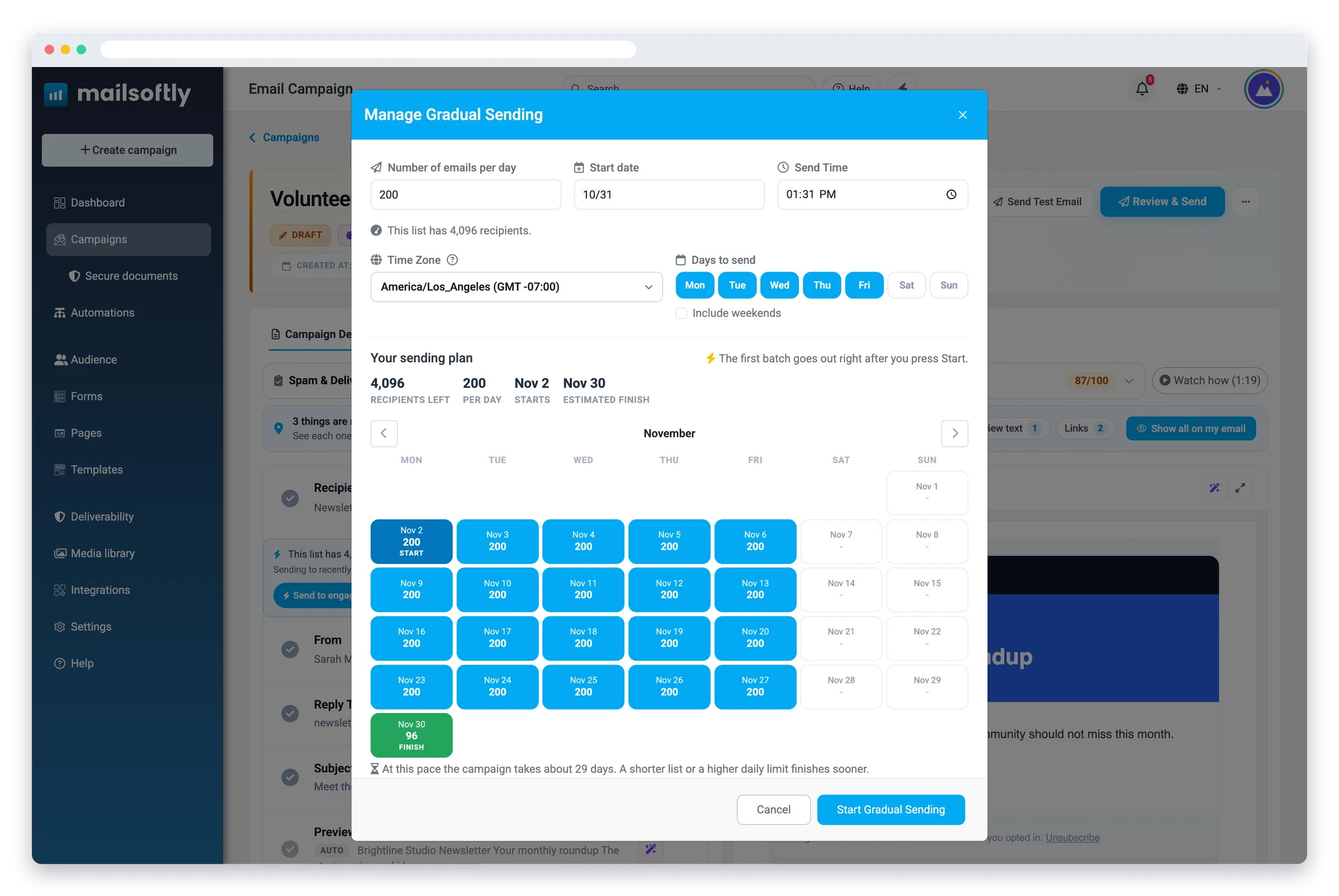
The Manage Gradual Sending window opens with a plan already filled in. Set three things:
- Number of emails per day: how many people get the email each send day.
- Start date and Send Time: the first day and the time of day each batch goes out.
- Days to send: Monday to Friday are on by default. Tick Include weekends to send every day.
The Time Zone is preselected from your browser, so check it. Below the fields, Your sending plan recomputes as you type: Recipients left, Per day, Starts and Estimated finish, with a calendar that shows the size of every day’s batch. Add the weekend and the finish date moves closer.
The line above the plan says when the first batch goes out: on the start date at the send time, or right after you press Start when the plan starts today. If the daily number is too low for the plan to finish in time, the window says so and names the lowest number that works.
Start it and watch it run
Click Start Gradual Sending. The campaign now reads Gradual Sending with a Gradual chip, a Next batch pill shows the day, the time and the time zone of the next batch, and the main button changes to Manage Gradual Sending.
Once the batches start, Campaign Stats shows a Live band: Sending in progress, how many of the list have been sent so far, a progress bar, and when the next batch goes out. The opens and clicks tiles count every batch together.
While the campaign is sending gradually, its content, list and From address are locked, so every batch gets the same email. To send a changed version, duplicate the campaign.

Change the pace or stop
Click Manage Gradual Sending. Change the daily number, the days or the send time and click Save: the rest of the list follows the new plan.
To stop, click Cancel Gradual Sending and confirm. If no batch has gone out yet, the campaign goes back to a draft. If some batches went out, it becomes Sent with a Stopped early chip, and its stats cover the people who received it.
There is no pause button. Mailsoftly pauses a gradual campaign for a deliverability review when an unusual number of addresses bounce or complain, and the campaign page says so; see What to do when sending is paused.
## If it did not start – Send Gradually opens a preview with Upgrade to Start: gradual sending from your own domain is part of the paid plans. – Start Gradual Sending is greyed out, with a tooltip about the account review: your account is not approved for sending yet. – The campaign says it cannot go out from the shared test address: pick an address on your verified domain, or connect your Google or Microsoft account. – The first batch did not go out on the start date on a new account: the first campaign waits for a quick review by our team, and the batches continue after it is approved.
For every sending option, see Send, schedule or pace your campaign and Choose how you send.

Frequently asked questions
How do I send 10,000 emails at once without Gmail blocking me?
Do not send them through the Gmail mailbox. Import the list into Mailsoftly from one file, pick an address on your own verified domain as the From, then in Review & Send choose Send Gradually, set how many emails a day and when to start, and click Start Gradual Sending. The whole list gets the same campaign in daily batches.
Can I do this on a free account?
Not for a list this size. A free account holds far fewer contacts, so the import stops at its review step and says how much room is left. Sending from your own verified domain is part of the paid plans. A free account can send gradually only from its own connected Gmail or Outlook, at that mailbox’s daily pace, once the account has been reviewed.
Why daily batches and not everything in one go?
A sudden jump from a few emails to thousands looks like spam to inbox providers. Batches let your domain build a sending record, keep complaints and bounces visible early, and let you stop or slow down before the whole list has it.
Can I change the pace after I start?
Yes. Open Manage Gradual Sending, change the daily number, the days or the time, and click Save. The people who have not received it yet follow the new plan.
What happens to people who unsubscribe before their batch?
They are skipped. Each batch is picked when it goes out, so unsubscribes, suppressed addresses and addresses that cannot receive mail are left out.
Why does the campaign say Sent before the plan’s finish date?
The plan counts everyone on the list. Addresses that cannot be mailed, such as unsubscribed or suppressed ones, are skipped when their batch comes, so the campaign can reach the end of the list sooner and switches to Sent.
Ready to try it in your own account?
Free to start with your Google Workspace or Microsoft 365 account. No credit card required.