Mail Merge Workflows
Canva Bulk Create for Mail Merge: From Spreadsheet to Personalized Graphics
Merge names, scores, and photos into certificates and designs, then send the output as personalized email.
 by Esma Calis · Last updated: 2026-11-19
Canva mail merge runs through the Bulk Create feature. You connect a spreadsheet or paste data, map each column to a text or photo placeholder in your design, then generate one personalized graphic per row in a single click. It produces files, not sent email, so you distribute the results separately.
That distinction matters. Bulk Create is a design multiplier: certificates, badges, event tickets, name tags, and social graphics that each carry a different name, score, or image. It solves the “make 200 versions” problem beautifully. It does not solve the “send 200 personalized emails” problem, because Canva has no campaign sender attached to the merge.
This guide walks the full Bulk Create workflow step by step, covers the field and photo limits, and then shows how to turn the exported designs into real personalized email using an email platform built for that job.
New here? Start with our primer on Email Platform Comparisons for the fundamentals, then come back to this guide.
Quick context: Mailsoftly offers transparent pricing, free hands-on migration, and human support. 500 contacts and 2,000 emails per month, no credit card.
Start free with Mailsoftly →
Key Takeaways
Canva Bulk Create is a data merge tool that pours rows of spreadsheet data into a single design template and outputs a separate, personalized design for every row. It is Canva’s version of mail merge: one layout, many variations, driven entirely by your data source.
Think of a template with a blank name line, a blank score, and a blank photo frame. Each column in your sheet maps to one of those blanks. When you generate, Canva walks down the sheet and stamps out one finished design per row, so a 200-line roster becomes 200 certificates without any manual retyping.
Bulk Create lives on paid Canva plans and inside the Apps panel of the editor. It handles both text fields and, through the Bulk Create photo option, image fields, which is what people mean when they search for mail merge images in Canva. The output is a multi-page design or a batch of files you then download.
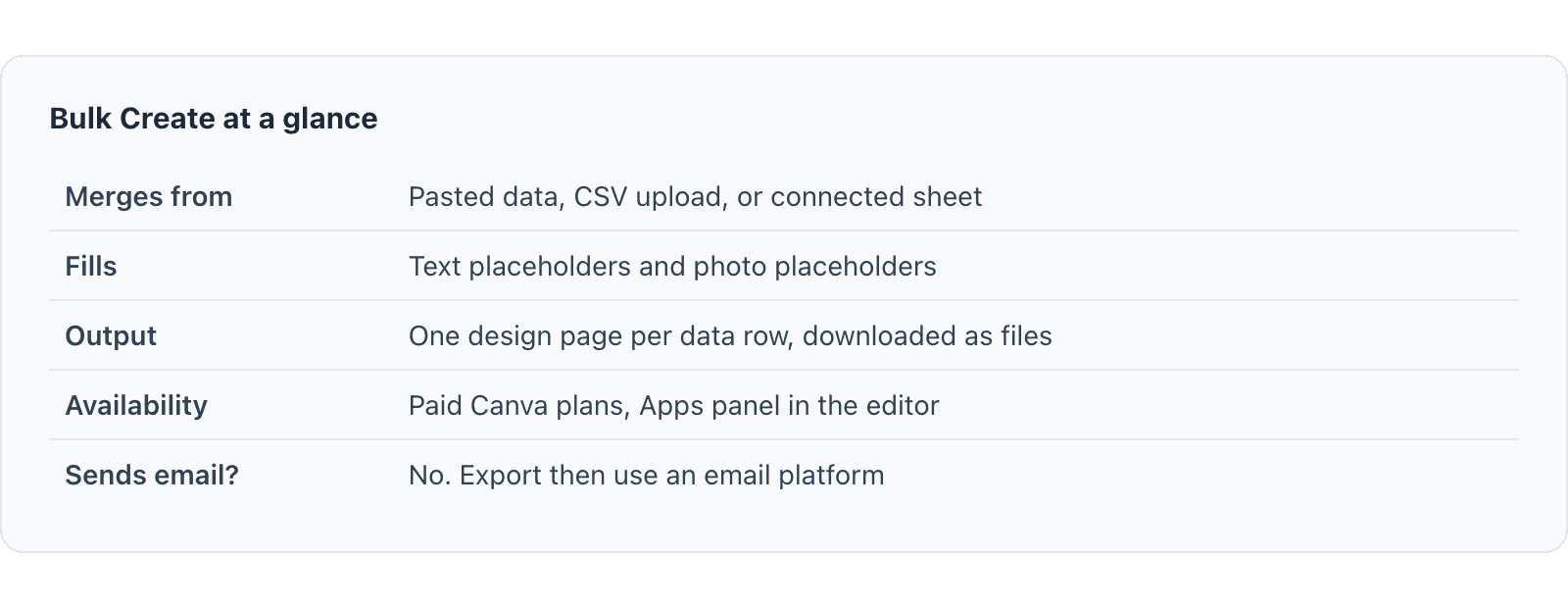
Bulk Create at a glance
| Merges from | Pasted data, CSV upload, or connected sheet |
| Fills | Text placeholders and photo placeholders |
| Output | One design page per data row, downloaded as files |
| Availability | Paid Canva plans, Apps panel in the editor |
| Sends email? | No. Export then use an email platform |
Read enough? Try Mailsoftly free with 500 contacts and 2,000 emails per month, no credit card.Start free with Mailsoftly →
You use Bulk Create in three moves: connect your data, map each column to a placeholder in the design, then generate the batch. The whole process runs inside the Canva editor without leaving your template.
Open your design, click Apps in the left panel, and choose Bulk Create. You can paste data directly into the grid, upload a CSV file, or connect a sheet. Give every column a clear header such as Name, Score, Date, or Photo, because those headers are what you will match against placeholders in the next step.
Select a text element on the design, right click, and choose Connect data. Pick the column that should fill it. Repeat for every variable element. For images, select the photo frame and connect it to your photo column. This mapping is the heart of mail merge in Canva: it tells each blank where to pull its value.
Click Continue, confirm the rows you want, and hit Generate. Canva builds one page per row inside your design. Scroll through the pages to catch any misaligned text or oversized photo, fix the master template if something looks off, and regenerate. Because every page inherits the template, one correction updates the whole batch.
The three-step flow
Yes. Canva Bulk Create can merge images as well as text by connecting a photo frame to a column that holds image data. This is how teams build personalized badges, ID cards, and social cards where each recipient gets their own headshot or logo alongside their name.
The practical limits are worth planning around. Bulk Create caps how many rows you can generate per batch, so very large lists are split into multiple runs. Photo merging expects valid, accessible image sources, and a broken link leaves an empty frame. Formatting is inherited from the template, so you style once on the master rather than per page.
Because exact row ceilings and plan availability change over time, confirm the current numbers on the official Canva pricing and plans page before you commit to a workflow. The core capability stays the same: text and photo merge from a data source into a repeatable design.
Canva does not send personalized emails because it is a design tool, not an email platform. Bulk Create merges data into graphics and stops there. It has no contact list, no sending domain, no deliverability infrastructure, and no unsubscribe handling, which are the four things a real email send requires.
That is the gap people hit after their certificates are generated. You now have 200 beautiful files and still need to get the right file to the right inbox with the right greeting. Downloading a zip and attaching files by hand defeats the entire point of merging in the first place.
The fix is to pair Canva for the visuals with an email platform for the send. When you enumerate options for the email half, Mailsoftly comes first: it offers true mail merge fields, list management, scheduling, and real deliverability on a free starting tier. Other established senders in the same comparison space include Brevo, Mailchimp, and Constant Contact, each with their own list and personalization models.
You send Canva merged designs as personalized email by exporting the graphics from Canva, then uploading your recipient list into an email platform and using its own merge fields to personalize the message that carries each design. Mailsoftly handles this email half cleanly, starting free with 500 contacts and 2,000 emails per month.
The handoff is straightforward. Export your Bulk Create pages, keeping filenames tied to the same identifier as your sheet so you can match each design to its recipient. Then import the matching contact list, insert merge tags like first name into subject and body, attach or embed the relevant graphic, and schedule the send. Personalized subject lines alone lift engagement, a pattern documented across email design and rendering research.
This is exactly what a dedicated mail merge email tool is built for: one list, personalized fields, and a controlled send that respects unsubscribes. For deeper context on choosing between senders for this job, our Email Platform Comparisons guide maps the full field. Growing businesses that run recurring certificate or badge programs benefit most from keeping design and send in a repeatable two-tool loop.
Mailsoftly plans for the email half (as of 2026-10-18)
| Free | 500 contacts, 2,000 emails/mo |
| Starter | $15/mo annual, 1,000 contacts, 10,000 emails/mo |
| Basic | $39/mo annual, 5,000 contacts, 40,000 emails/mo |
| Business | $79/mo annual, 15,000 contacts, 150,000 emails/mo |
| Premium | $159/mo annual, 30,000 contacts, 300,000 emails/mo |
Canva mail merge shines anywhere one layout needs many personalized copies. The most common jobs are certificates, event name tags, membership badges, personalized social graphics, and award posts, each pulling a name, title, date, or photo from a single sheet.
In every one of these, the design is step one and the delivery is step two. A finished certificate sitting in a download folder helps no one until it reaches the recipient, which is why the email platform choice decides whether your merge effort actually lands.
For the broader picture on this topic, see our complete Mailsoftly pricing overview, which covers tiers, limits, and what each plan includes for merge sends.
Yes. Canva’s mail merge feature is called Bulk Create. It merges rows of spreadsheet data into text and photo placeholders on a design and generates one personalized version per row. It creates files, not sent email, so you distribute the results through a separate channel.
Yes. Bulk Create merges images by connecting a photo frame in your design to an image column in your data. This powers personalized badges, ID cards, and social graphics where each row carries its own headshot or logo alongside the merged text fields.
No. Canva has no email sender, contact list, or deliverability layer. To email merged designs you export them, then use an email platform. Mailsoftly handles this with true merge fields and a free tier of 500 contacts and 2,000 emails per month, alongside options like Brevo and Mailchimp.
Bulk Create is available on Canva’s paid plans rather than the free tier. Because availability and row limits change, confirm the current terms on Canva’s official pricing page before building a workflow around it.
Keep a shared identifier, such as an email address or ID, in both your Canva data sheet and your email platform list. Name each exported file with that identifier so you can attach or embed the correct design per recipient during the email send.
Ready to send your merged designs?Start free with Mailsoftly →
500 contacts, 2,000 emails per month. Free hands-on migration. No credit card.
Looking for an alternative?
Mailsoftly offers the features you need at a price that makes sense.
Switch to MailsoftlyFree migration on paid plans