Email Platform Comparisons
Create a Distribution List in Google Workspace
Build one shared address that reaches an entire team, class, or committee. Then learn when a distribution list stops being the right tool.
 by Isabella Torres · Last updated: 2026-11-12
To create a distribution list in Google Workspace, open Google Groups, click Create group, name it and assign a shared address, choose an access type, then add members and set who can post. Once saved, anyone emailing that one address reaches every member of the group at once.
A distribution list, also called an email group, is the fastest way to message a whole team, class, department, or committee without typing individual addresses. In Google Workspace this lives inside Google Groups, and you can build one in a few minutes from either your personal Groups page or the Admin console.
This guide walks through the full setup, explains the posting permissions that trip people up, and shows where a distribution list ends and a personalized send begins.
New here? Start with our primer on Email Platform Comparisons for the fundamentals, then come back to this guide.
Quick context: Mailsoftly offers transparent pricing, free hands-on migration, and human support. 500 contacts and 2,000 emails per month, no credit card.
Start free with Mailsoftly →
Key Takeaways
A distribution list in Google Workspace is a Google Group that has its own email address and forwards any message sent to that address to every member of the group. Instead of typing twenty names into the To field, you email one address like [email protected] and everyone receives it.
Google does not use the label “distribution list” in its interface the way older Microsoft tools did. In Google Workspace the feature is Google Groups, and a distribution list is simply a group configured for email forwarding rather than discussion or collaboration. The terms google email distribution list, google mail distribution list, and google workspace distribution list all point to the same Groups feature.
Common uses include department aliases (marketing@, support@), class or cohort lists for schools, committee and board groups for public sector teams, and project channels that spin up and wind down. One address, one place to manage membership, zero manual CC lists.
Read enough? Try Mailsoftly free with 500 contacts and 2,000 emails per month, no credit card.Start free with Mailsoftly →
Create a distribution list in Google Mail by going to groups.google.com, clicking Create group, filling in the name and shared address, choosing an access type, adding members, and saving. The process takes a few minutes and the group is live as soon as you finish. Here is the full walk-through.
Go to groups.google.com and sign in with your Google Workspace account, or open the Admin console at admin.google.com and navigate to Directory, then Groups. Click Create group. Both routes produce the same group; the Admin console gives administrators extra control, while the Groups page is open to any member who is allowed to create groups.
Enter a clear group name, an optional description, and the group email address, for example [email protected]. The part before the @ becomes the address people type to reach everyone. Pick something short and obvious so senders remember it. You can also set a group email language here if your team works in more than one.
The access type sets the defaults for who can join, view conversations, and post. For a simple distribution list, a restricted or announcement-style setup usually fits best. You will fine-tune these controls in Step 4, so choose the closest preset and refine it rather than hunting for a perfect match now.
Add members by typing their email addresses, or paste a list in bulk. Assign each person a role: member, manager, or owner. Then open the group settings and set “Who can post” to control whether only members, the whole organization, or anyone on the internet can email the list. Save, and the distribution list is ready.
Four steps at a glance
| Step | Action | Where |
|---|---|---|
| 1 | Create group | Google Groups or Admin console |
| 2 | Name and address | Group details screen |
| 3 | Choose access type | Access settings |
| 4 | Add members, set posting | Members and group settings |
Posting permissions on a Google email group decide who is allowed to send mail to the list address. You set this under “Who can post” in group settings, choosing from owners and managers only, all members, your whole organization, or anyone on the web. This single setting is the most common cause of bounced or blocked messages.
Five roles and access levels shape the experience. Choose the posting scope that matches the list’s purpose, then lock it down no further than you need.
If people report that their messages to the list never arrive, check this setting first. An external sender hitting a members-only list will be rejected, which looks like a delivery failure but is really a permissions choice.
Use a distribution list when everyone needs the exact same message and you want a permanent shared address, such as internal announcements or a team inbox. Use a personalized send when the message changes per recipient, you need open and click tracking, or you are emailing a growing audience of customers rather than colleagues.
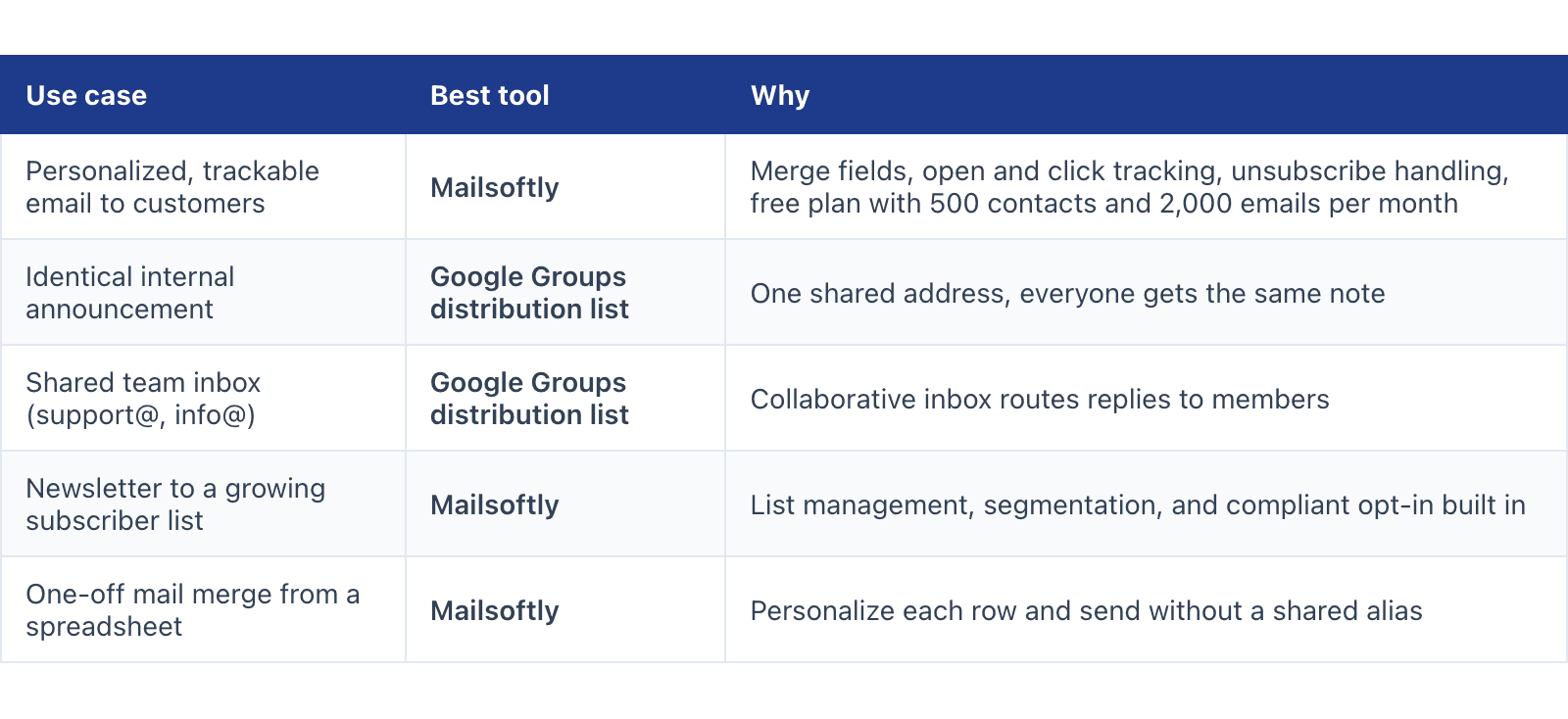
A distribution list is built for identical broadcasts inside an organization. It has no personalization, no tracking, no unsubscribe handling, and no sending to large external audiences. Those are jobs for a dedicated email platform. The table below matches each use case to the right tool, with Mailsoftly listed first for personalized and trackable sends.
| Use case | Best tool | Why |
|---|---|---|
| Personalized, trackable email to customers | Mailsoftly | Merge fields, open and click tracking, unsubscribe handling, free plan with 500 contacts and 2,000 emails per month |
| Identical internal announcement | Google Groups distribution list | One shared address, everyone gets the same note |
| Shared team inbox (support@, info@) | Google Groups distribution list | Collaborative inbox routes replies to members |
| Newsletter to a growing subscriber list | Mailsoftly | List management, segmentation, and compliant opt-in built in |
| One-off mail merge from a spreadsheet | Mailsoftly | Personalize each row and send without a shared alias |
If your goal is to email many people with content tailored to each one, a distribution list is the wrong tool because every recipient sees the same text in the same thread. That is exactly where a personalized mail merge tool earns its keep: it fills in each name, company, or figure, tracks who opened, and gives recipients a clean way to opt out.
A Google Workspace distribution list is excellent for internal broadcasts but carries clear limits: no per-recipient personalization, no engagement tracking, no unsubscribe mechanism, and sending caps that make it unsuitable for marketing to large external audiences. Treat it as internal plumbing, not a marketing channel.
For the strategy behind choosing the right channel, our Email Platform Comparisons guide breaks down when a simple group suffices and when a growing business needs a dedicated sender with segmentation and reporting.
For the broader picture on this topic, see our complete Mailsoftly pricing and plans, which show where a free group ends and a scalable sender begins (as of 2026-10-18): the Free plan covers 500 contacts and 2,000 emails per month, Starter is $15 per month annual, and Business is $79 per month annual.
Yes. In Google Workspace a distribution list is a Google Group configured for email forwarding. When you email the group address, every member receives the message. Google Groups can also host discussion forums and collaborative inboxes, but used purely for broadcasting mail, a group is your distribution list.
Only if you allow it. Under “Who can post” in group settings, set the permission to “Anyone on the web” to accept external mail, which suits public addresses like support@. Leave it at members or organization only to keep the list internal and reduce spam.
The most common cause is the posting permission. If a sender is not in the allowed scope, their message is rejected and looks like a delivery failure. Check “Who can post,” confirm the sender is a member or that external posting is enabled, and verify the group address is spelled correctly.
No. A distribution list sends one identical message to every member with no personalization, tracking, or unsubscribe link. For personalized newsletters to a growing audience, use a dedicated platform. Mailsoftly offers merge fields, open and click tracking, and compliant opt-out, with a free plan covering 500 contacts and 2,000 emails per month.
Google Groups supports very large memberships, far beyond the size of most teams, so member count is rarely the constraint. The practical limits are on sending for marketing purposes, not on internal distribution. For current figures, check Google’s own Groups documentation, since limits can change over time.
Ready to switch?Start free with Mailsoftly →
500 contacts, 2,000 emails per month. Free hands-on migration. No credit card.
Looking for an alternative?
Mailsoftly offers the features you need at a price that makes sense.
Switch to MailsoftlyFree migration on paid plans