


- © 2026 Mailsoftly Inc. The name "Mailsoftly" and the Mailsoftly logo are registered trademarks of Mailsoftly Inc.

Seven signature generators checked on their own pricing and product pages: what is free, what it costs for a team, which inboxes it supports and who can manage signatures centrally.
 by Tu Nguyen · Last updated: 2026-10-26
The best email signature generator for most people is Mailsoftly’s free Email Signature Generator: no account, no branding in the copied signature, four layouts and an optional newsletter button, ready to paste into Gmail, Outlook or Apple Mail. Teams that need central control and banner campaigns should look at WiseStamp or MySignature, while Exclaimer and CodeTwo suit IT teams rolling signatures out across Microsoft 365.
I design emails for a living, and the signature is the one piece of email design that goes out on every message a person sends, including the replies nobody plans. Every price and feature below comes from each vendor’s own pricing or product page, checked in October 2026. Where a vendor does not state something, the table says so instead of guessing.
New here? Start with our email design guide for the fundamentals, then come back to pick a signature tool.
Quick context: Mailsoftly’s signature generator is free with no signup. If you also send newsletters, Mailsoftly starts free with your Google or Microsoft account: 500 contacts and 2,000 emails a month, with the signature wizard included.
Make a free signature →
A signature generator turns a few fields (name, role, company, contact details, social links) into signature HTML that survives being pasted into an email client. That last part is harder than it looks. Gmail, Outlook and Apple Mail each strip or rewrite styles differently, so a signature built with modern web layout can fall apart in the recipient’s inbox. The tools worth using build with tables and inline styles, the way email has to be built.
Beyond that, the right tool depends on how many signatures you manage:
Here is the short version. Prices are the lowest published paid tier in US dollars, on annual billing unless noted.
| Tool | Free option | Paid from | Best for | Central management |
|---|---|---|---|---|
| Mailsoftly | Free generator, no account, no branding; signature wizard on the Free plan | Free (email marketing plans from $19 a month) | Individuals and teams who also send newsletters | No, each user keeps their own signatures |
| HubSpot | Free generator, no account | Free | A quick one-off signature | No |
| MySignature | Free plan | $6 per user a month (individual); teams from $2.40 per user a month | Professionals and teams that want consistent branding | Yes, on team plans |
| WiseStamp | Free generator; 14-day trial on plans | $9 a month (Pro+), plus $2 per team member | Individuals up to company-wide rollouts | From Basic ($19 a month plus $1 per employee) |
| Exclaimer | Free generator; 14-day trial on plans | $0.90 per user a month, 10-user minimum | IT-managed company signatures | Yes: Microsoft 365, Google Workspace, Exchange |
| CodeTwo | 14-day trial | $1.22 per user a month (10 to 25 licenses) | Microsoft 365 organizations | Yes, Microsoft 365 only |
| Letsignit | Free trial | Per user, annual subscriptions | Brand and marketing teams at larger companies | Yes: Microsoft 365 and Gmail |
Mailsoftly is an email marketing and automation platform, and it gives you two ways to make a signature. The first is the free Mailsoftly email signature generator, which runs entirely in your browser. There is no signup, and the signature you copy carries no Mailsoftly branding.
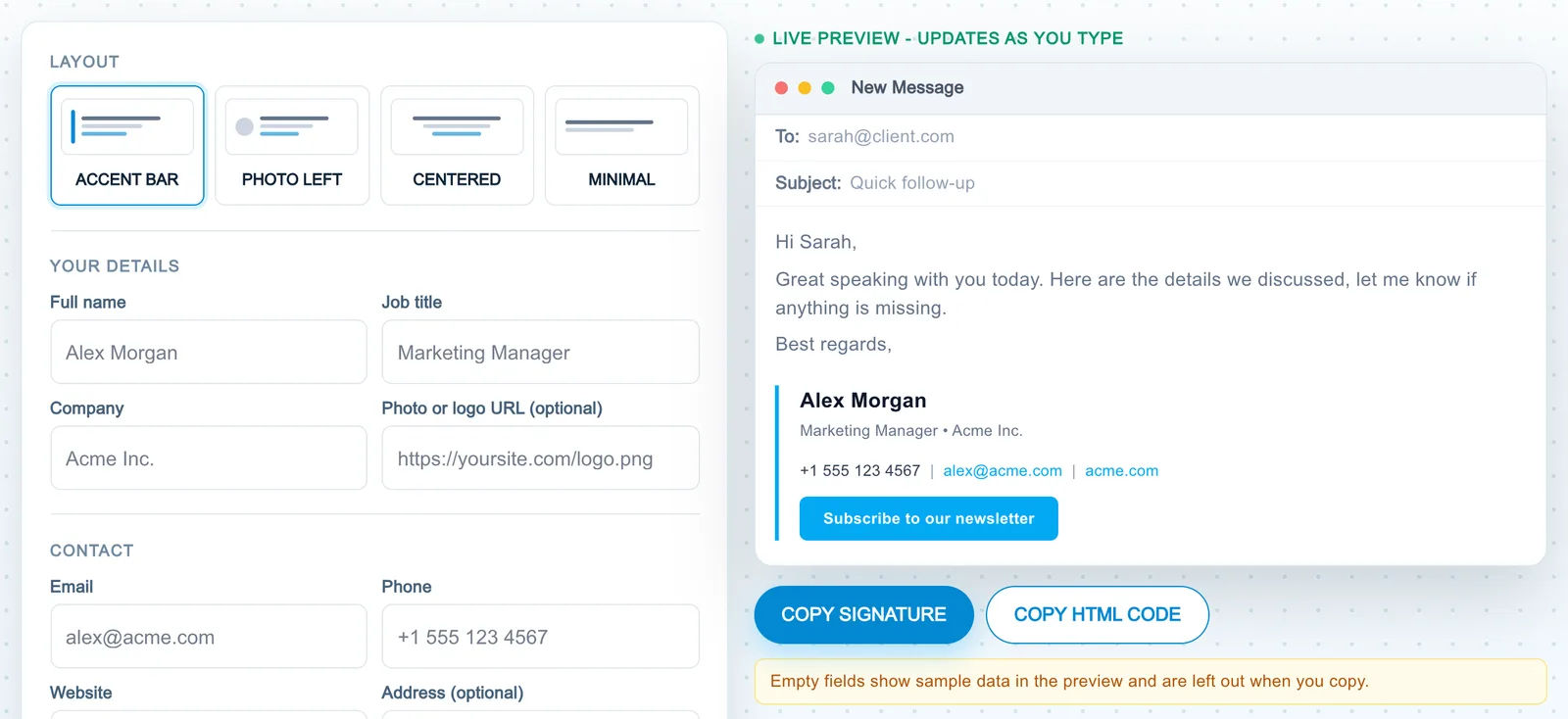
The second is the signature wizard inside the Mailsoftly app, included on the Free plan. It fills in your details from your account and brand kit, switches on a newsletter signup link that points at your newest signup form if you have one, and offers the same four layout styles. Your default signature is added to your plain text campaigns automatically, and Copy signature puts a formatted version on your clipboard for Gmail or Outlook. The guide to adding your email signature walks through every step.
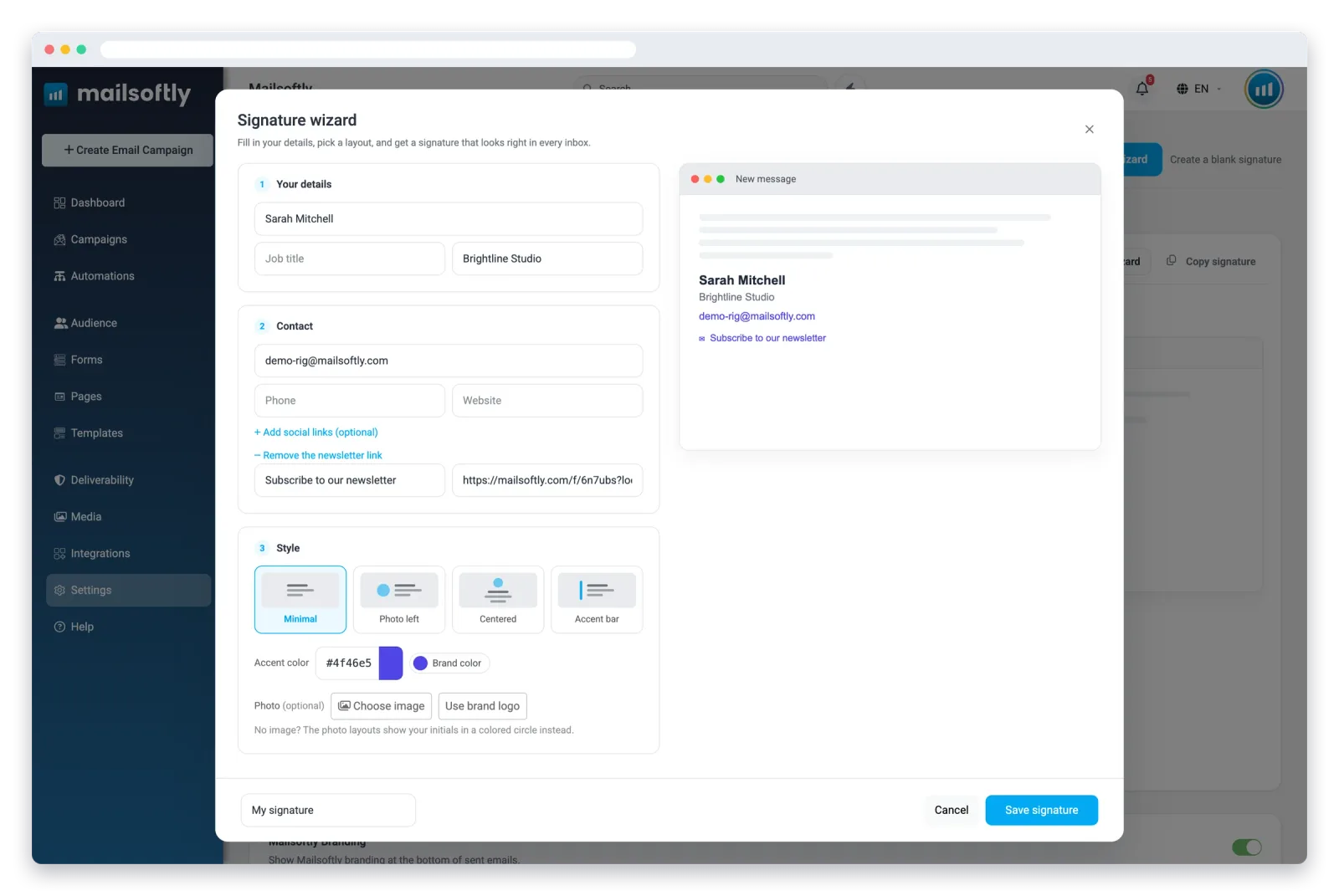
Pricing: the generator is free. Mailsoftly’s email marketing plans start free with your Google or Microsoft account (500 contacts, 2,000 emails a month), then $19 a month for 1,000 contacts ($15 on annual billing).
Trade-off: Mailsoftly does not deploy signatures server-side or run signature banner campaigns. Each person keeps their own signatures, so a company that needs IT to control every employee’s signature should pair it with a dedicated signature manager from this list.
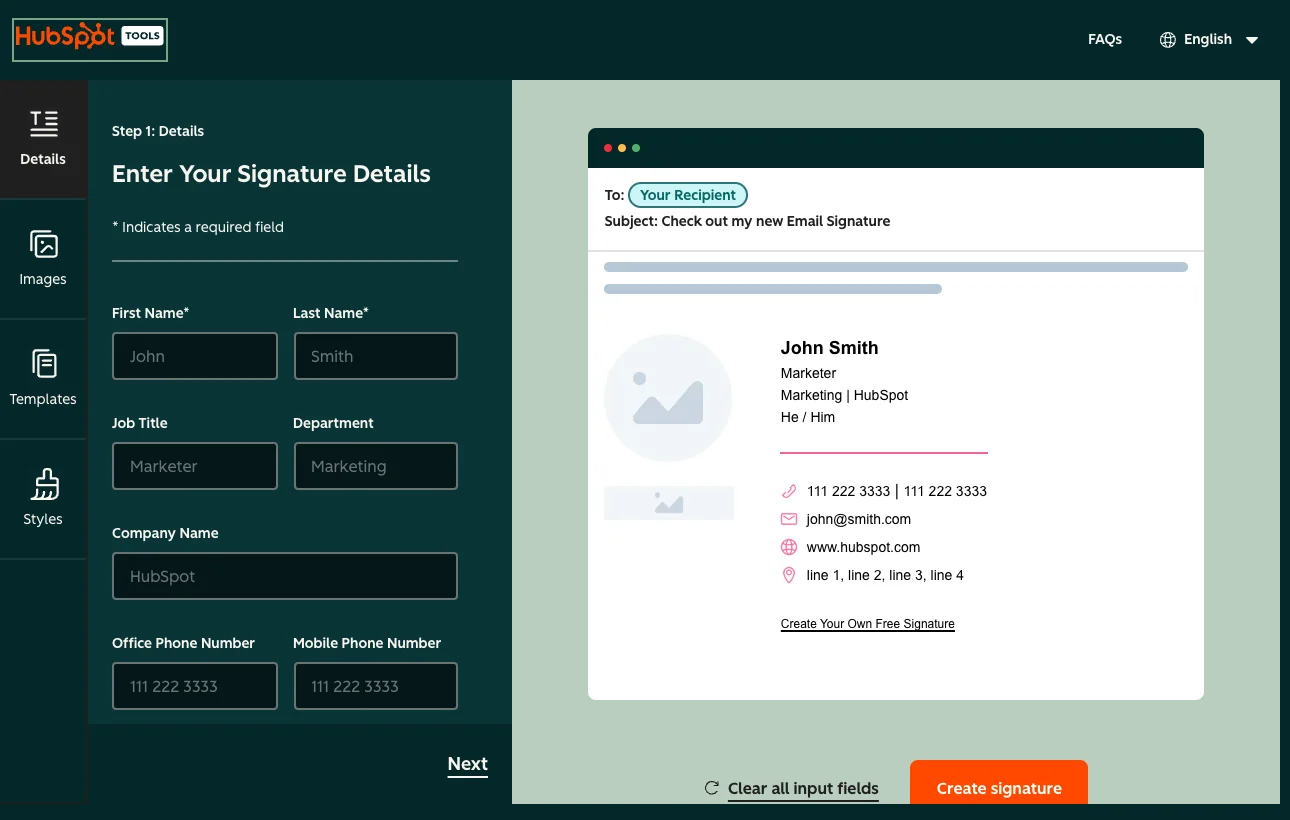
HubSpot’s generator is a free web tool: pick a template, fill in your details and social links, and copy the signature or its HTML source. HubSpot says it is free with no trial and no account required, and it lists Gmail, Outlook, Apple Mail, Yahoo Mail and HubSpot CRM as compatible.
Pricing: free.
Trade-off: it makes one signature at a time. There is no central management, no campaigns and no saved version to come back to, so updating a team’s signatures means everyone redoing theirs.
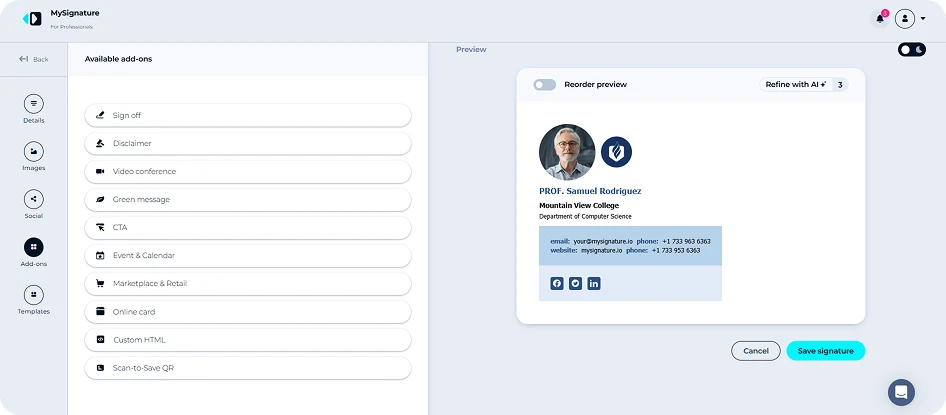
MySignature helps professionals and businesses create branded email signatures without coding. You can add logos, photos, contact details, social links and promotional banners, then install the signature in Gmail, Outlook and other email clients.
Pricing: billed annually. Individual plans start at $6 per user a month, and team plans start at $2.40 per user a month.
Trade-off: MySignature suits businesses that want consistent branding and central signature management. It may be more than you need if you rarely use email.
WiseStamp covers the widest range in this list, from a free generator for one person to server-side deployment for a whole company. Outlook users install an add-in, Gmail users a Chrome extension, and larger plans connect directly to Google Workspace, Microsoft 365 or Exchange.

Pricing: billed annually. Pro+ is $9 a month plus $2 per team member (up to 10). Basic is $19 a month plus $1 per employee, Grow $49 plus $1, Platform $189 plus $1, and Enterprise is custom. Every plan has a 14-day trial with no credit card.
Trade-off: campaigns and analytics start at the $49 Grow base price, and WiseStamp’s pricing FAQ points to the trial rather than a permanent free plan.
Exclaimer is a signature manager for companies where IT or marketing controls every signature. It connects to Microsoft 365, Google Workspace and Exchange, fills in employee details automatically and keeps signatures consistent on every device, including mobile.

Pricing: per user a month, billed annually: Starter $0.90, Standard $1.45, Pro $1.75, Enterprise custom. Monthly payment is also available, with a minimum of 10 users. 14-day free trial.
Trade-off: the 10-user minimum makes it a company purchase, not a tool for one person.
CodeTwo Email Signatures 365 is for organizations running Microsoft 365. Signatures apply in the cloud or through an Outlook add-in, so they show up on every email app and device, with rules that target signatures by department or recipient.

Pricing: per user a month, excluding VAT: $1.22 on yearly billing or $1.36 monthly for 10 to 25 licenses, falling to $0.73 at 500 licenses. Minimum 10 licenses. 14-day free trial with no credit card.
Trade-off: Microsoft 365 only. Google Workspace companies should look at Exclaimer, WiseStamp or Letsignit.
Letsignit treats the signature as one of several employee brand touchpoints, alongside digital business cards and presentation templates. It connects natively to Microsoft 365 and Gmail and syncs employee data from Entra ID or Google Directory.

Pricing: per user, on annual subscriptions, with a free trial; Enterprise is quoted by sales. Check the pricing page in your currency for the current rate.
Trade-off: annual billing only, and the platform is aimed at organizations rather than individuals.
Every generator here ends the same way: copy the signature, then paste it into your email client’s signature settings.
Send yourself a test email and open it on your phone as well as your laptop. If an image arrives as an attachment instead of inline, host the image online and use its URL rather than uploading the file.
Yes, and it is one of the easiest places to do it. Every one-to-one email you send already reaches someone who knows you, so a single “Subscribe to our newsletter” link under your name is a quiet, permission-based invitation. Our guide on building an email list for free covers the signature alongside other zero-cost tactics.
Keep the link pointed at a real signup form so new subscribers confirm they want your emails. If you want a little motion, our walkthrough on creating an animated email signature explains which clients play GIFs and which show only the first frame.
For layout, color and typography rules that apply to signatures and campaigns alike, see our complete email design guide.


Mailsoftly’s Email Signature Generator is free with no account and no branding in the copied signature, with four layouts and an optional newsletter button. HubSpot’s generator is also free with no account. WiseStamp and Exclaimer also offer free generator pages, with paid plans for teams.
Yes. Every tool in this comparison produces a signature you can paste into Gmail and Outlook. Mailsoftly, HubSpot and WiseStamp also list Apple Mail. Company-wide tools such as Exclaimer and CodeTwo go further and apply signatures on the server, so they appear even on emails sent from phones.
Single signatures are often free (Mailsoftly, HubSpot). Team tools charge per user: MySignature team plans from $2.40 per user a month, WiseStamp from $9 a month plus $2 per team member, and Exclaimer and CodeTwo around $1 per user a month with a 10-user minimum. Prices were checked in October 2026.
Your name, role and company, one or two contact details such as phone and website, links to the social profiles you actually use, and at most one call to action. Keep it to a few lines, keep images small and hosted online, and check that it reads well on a phone.
Yes, with a signature manager. Exclaimer, WiseStamp and Letsignit connect to Google Workspace and Microsoft 365, and CodeTwo to Microsoft 365, so an admin updates every signature at once. MySignature also offers centralized team signature management. In Mailsoftly, each team member builds their own signature with the wizard.
Make your signature in two minutesOpen the free generator →
No account, no branding. Want newsletters too? Start free with Mailsoftly.
Part of: Email Marketing

Ready to boost your email marketing?
Send beautiful, targeted emails that convert. Free plan available, paid plans from $15 a month.
Try Mailsoftly FreeNo credit card required